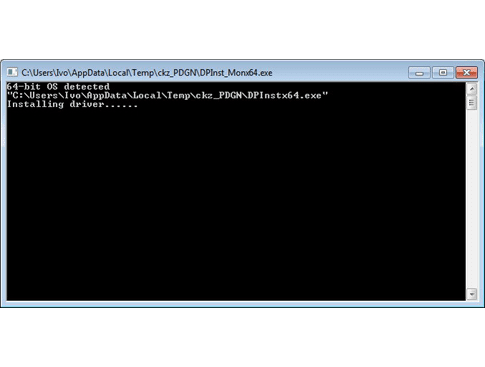
Please start the executable file above to initiate installation procedure and follow the on screen instructions.
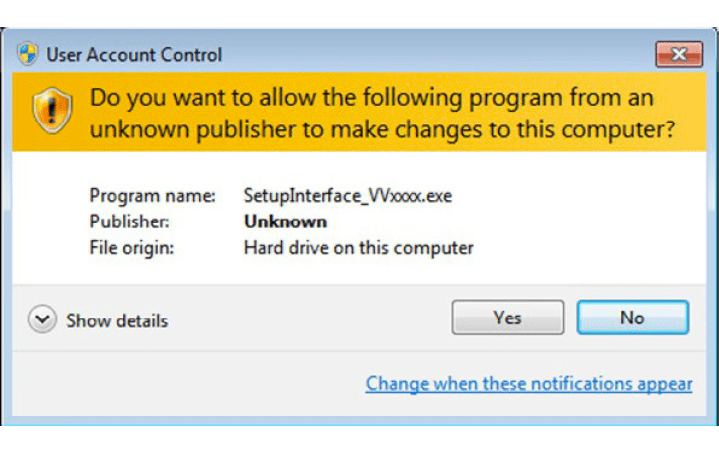
Depending of your operation system and settings you can be asked to confirm starting of installation procedure.
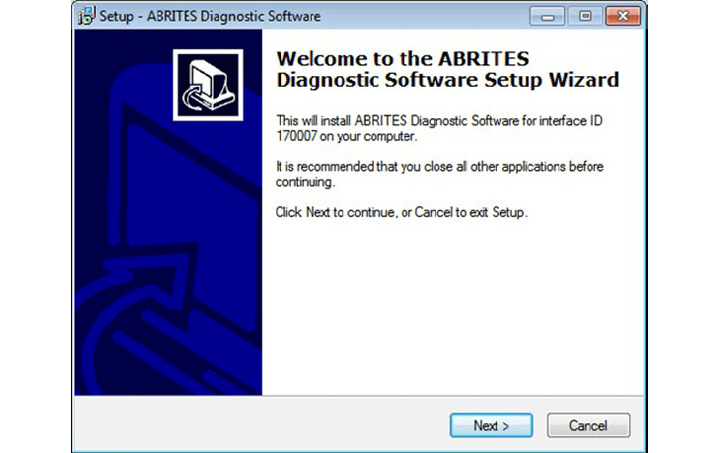
Press “Next” button to proceed with the installation.
Read carefully license agreement and select “I accept the agreement” if you accepting all. Then press “Next” button.
If you not agree press cancel to interrupt installation procedure.
Press “Next” button to proceed with the installation.
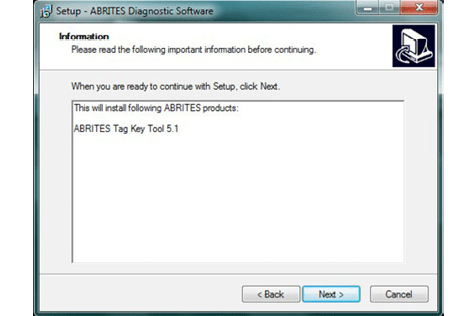
Press “Next” button to proceed with the installation.
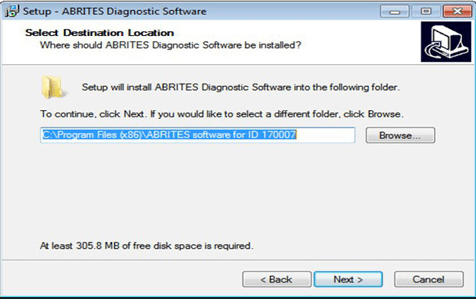
Press “Next” button to proceed.
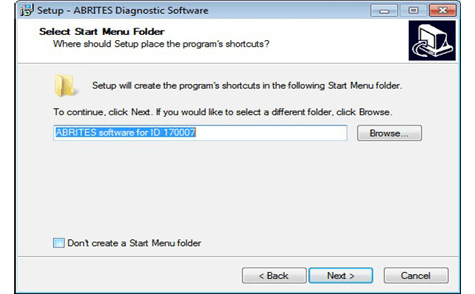
If you don’t want desktop icons unchecked the check box about creation of icons.
Press “Next” button to proceed.
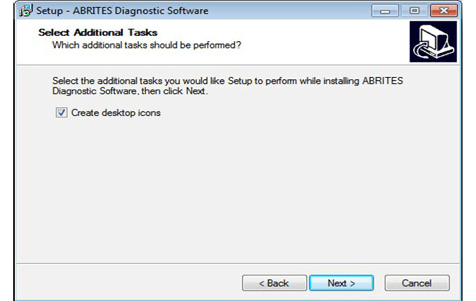
Press “Install” and wait until installation complete.
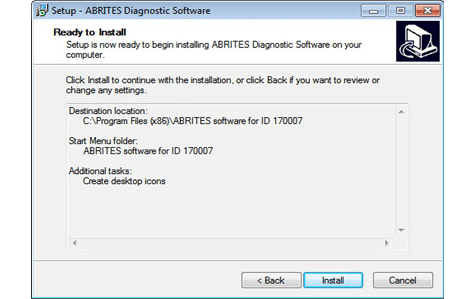
Be sure that check box about installation of interface’s USB drivers is set especially if you installing for first time Abrites Diagnostic Software.
Press “Finish”.
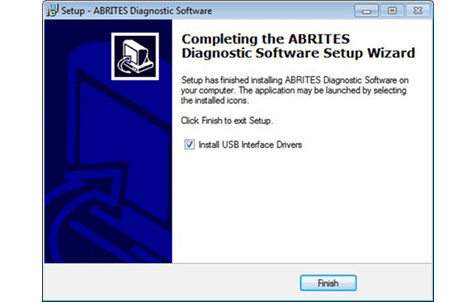
Depending setting of your operation system you can be asked to confirm installation of USB drivers.
Press “Yes”.
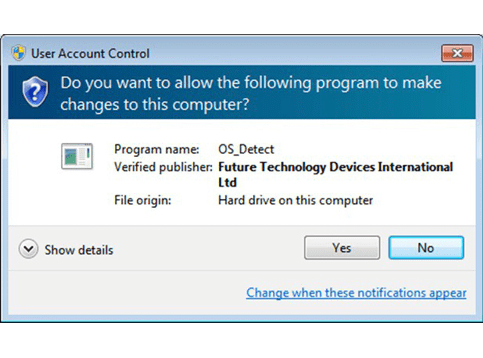
Wait until installation of USB driver finish.