The Abrites Diagnostics for Bikes, Snowmobiles and Water Scooters software consists of basically two parts.
1. Standard diagnostic functions
Reading DTCs/ Clearing DTCs (fault codes)/ Scanning available modules and extended module identification, Data display in the supported vehicles.
When performing standard diagnostics the first step that needs to be performed is to select the type of vehicle that requires the diagnostic service. By default your first screen will be set to the “Vehicle selection” tab:
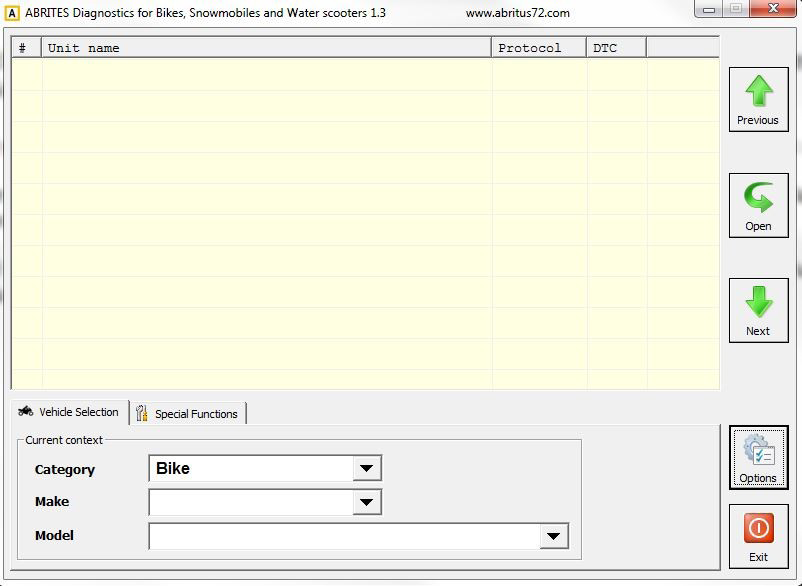
From this screen you will need to select the vehicle “Category” (e.g. Bike, Snowmobile, Water Scooter), the “Make” (e.g. Aprilia, BMW, Ducati, Harley-Davidson, Kawasaki, Gilera, Piaggio, Suzuki, etc.) and the “Model”.
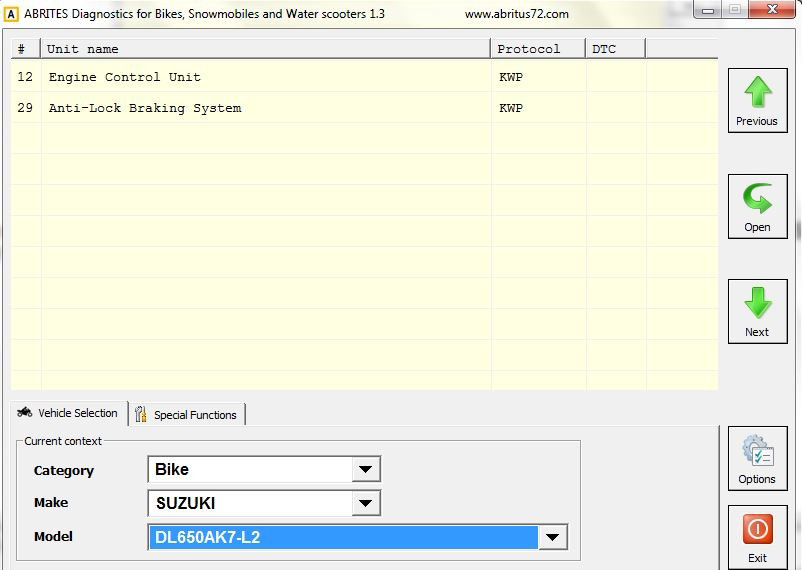
NOTE: For the purposes of the manual we are using a Suzuki motorcycle, the model is DL650K7-L2. This motorcycle has two electronic modules available. The principle is similar with any vehicle tested by the Abrites Diagnostics for Bikes, Snowmobiles and Water Scooters. The two available electronic modules of this motorcycle are the Engine Control Unit and the Anti-lock Braking System. In the “Protocol” field of the diagnostic screen we can determine that both units use the KWP protocol.
- Select the vehicle as described above:
-
Once the correct vehicle is selected the available electronic modules will be displayed in the “Unit name” field.
-
Drill into the units in order perform diagnostics for them by double – clicking directly over the name of the unit:
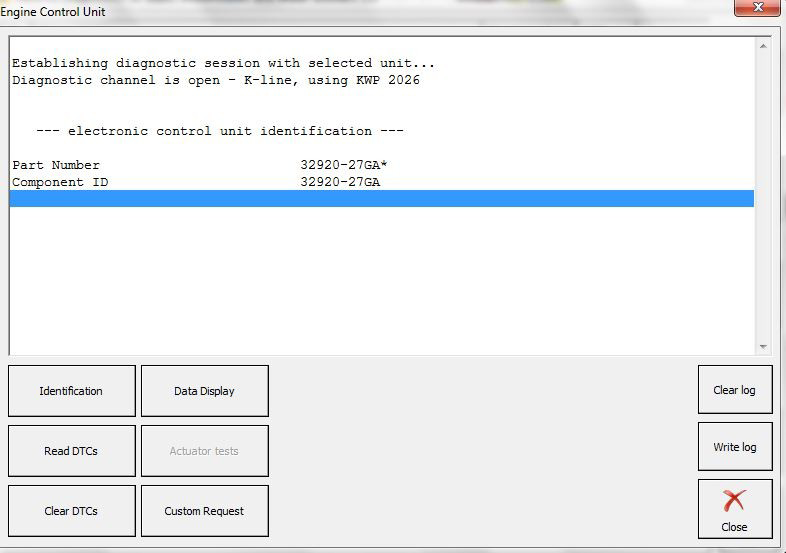
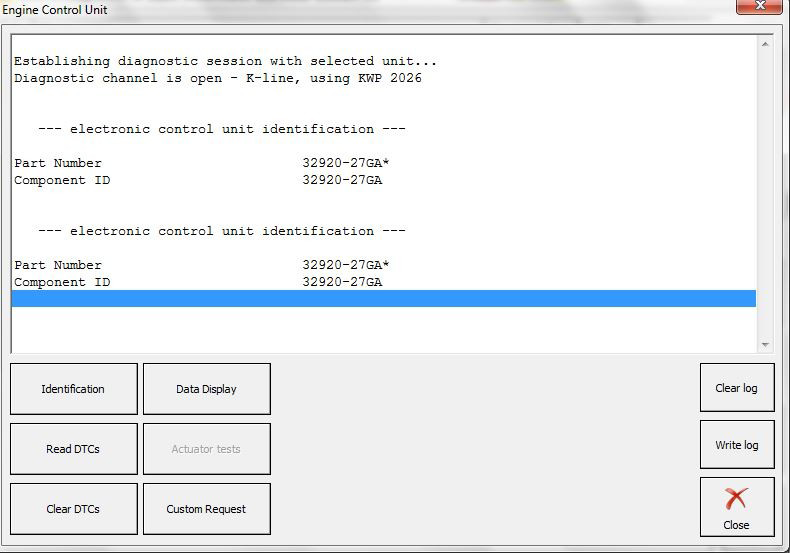
The display field will inform you about the establishment of a diagnostic session with the selected unit. It will also provide information about the protocol and on multiple occasions it will automatically display the unit identification in terms of Part number and Component ID.
- Selecting the “Identification” button will allow you to see the unit’s Part number and Component ID (This is mostly used for searching for replacement parts):
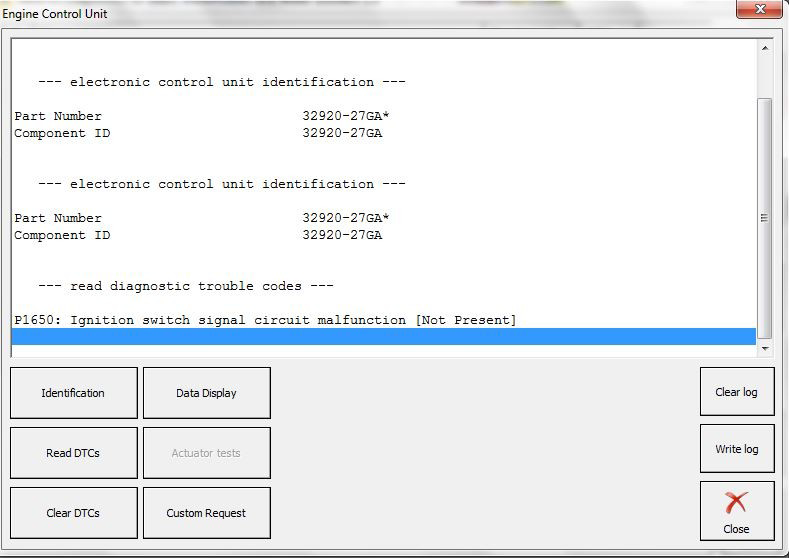
- Selecting the “Read DTC” button will read the Diagnostic Trouble Codes from the unit (if present), it will display it with the factory number of DTC as well as the appropriate text identification (if available):
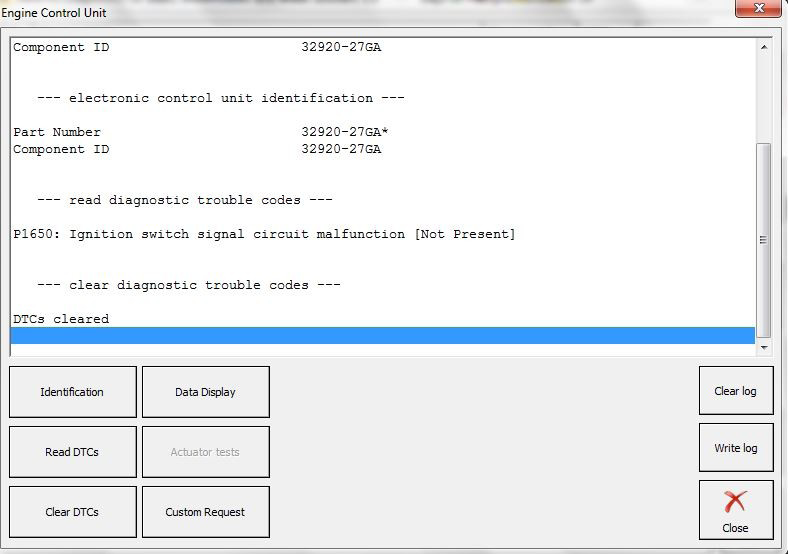
- Once the vehicle is repaired and the issue is removed the “Clear DTC” button is selected. This will remove the Diagnostic Trouble Code from the unit’s memory thus allowing the vehicle to operate correctly:
- The “Data Display” button provides a complete “actual value data” view of the vehicle in one, multiple or all parameters by gathering information from the vehicle’s sensors. This function is extremely helpful when determining a hidden fault within a vehicle or analyzing the “behavior” after specific modifications or repairs have been made:
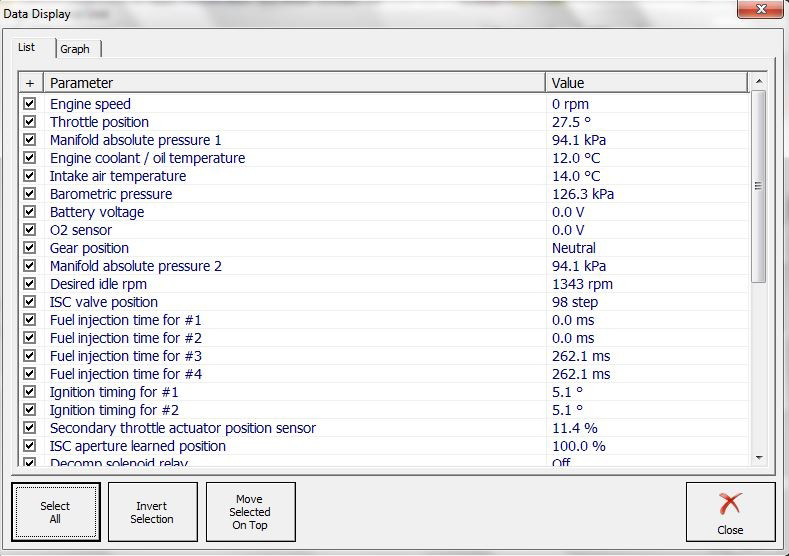
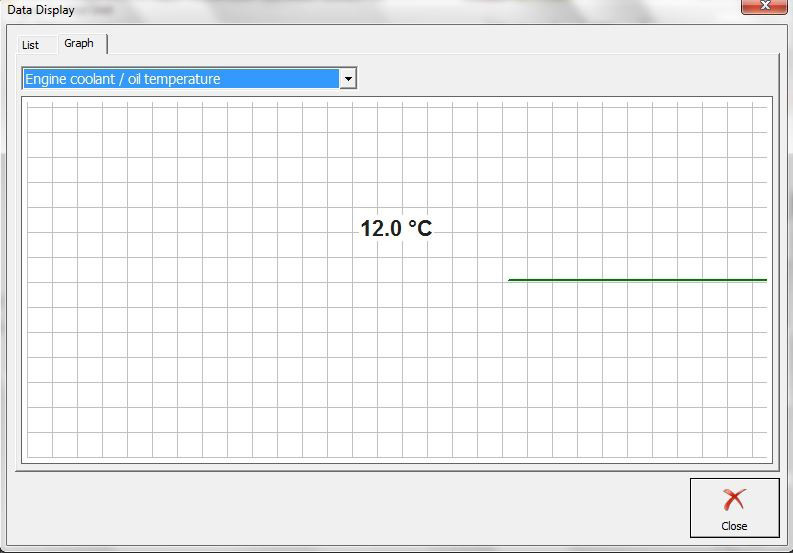
- The “Data Display” menu provides two different views. The “List” view, as shown above allows selection of sensors with a check box list. The list can be customized and its order can be modified by the user for a more accurate overview of the vehicle values. The “Graph” view allows the monitoring of a parameter in a graphic form in order to determine patterns and behavioral changes. It provides the available sensor signals in a drop down menu where a value can be selected:
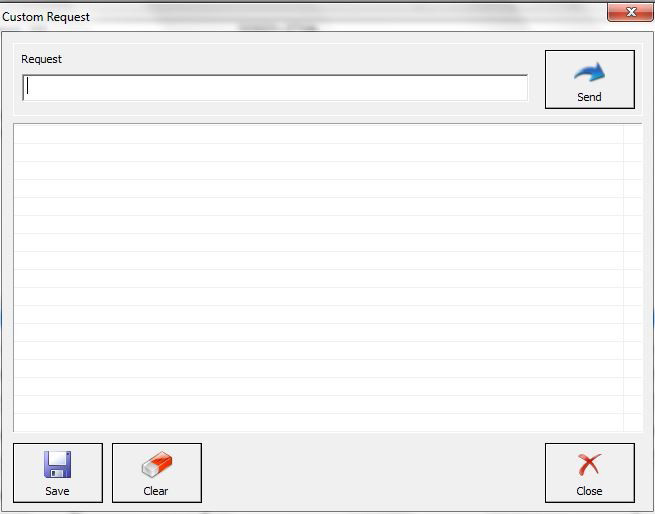
- “Custom Request” allows the user to send custom signals to the electronic units and monitor the response in a table view. The custom request can be saved for reference: