NOTE: Please be informed that module support may vary according to the model year. A full list of all supported models is available at www.abrites.com
V. Troubleshooting steps
1. Connection issues
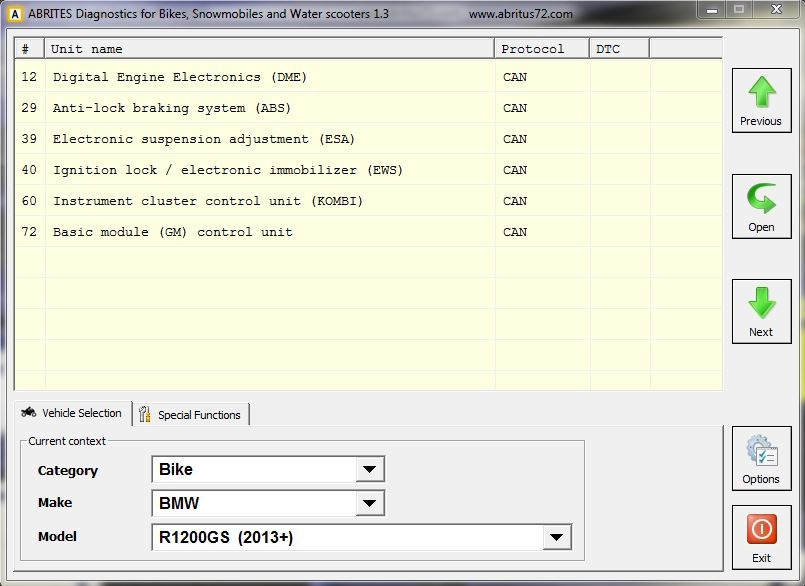
One of the most common faults that may occur with the Abrites Diagnostics for Bikes, Snowmobiles and Water Scooters is the impossibility of the software and interface to connect to the vehicle, subjected to diagnostics. In the example below the vehicle is defined and a module is being selected for diagnostics:
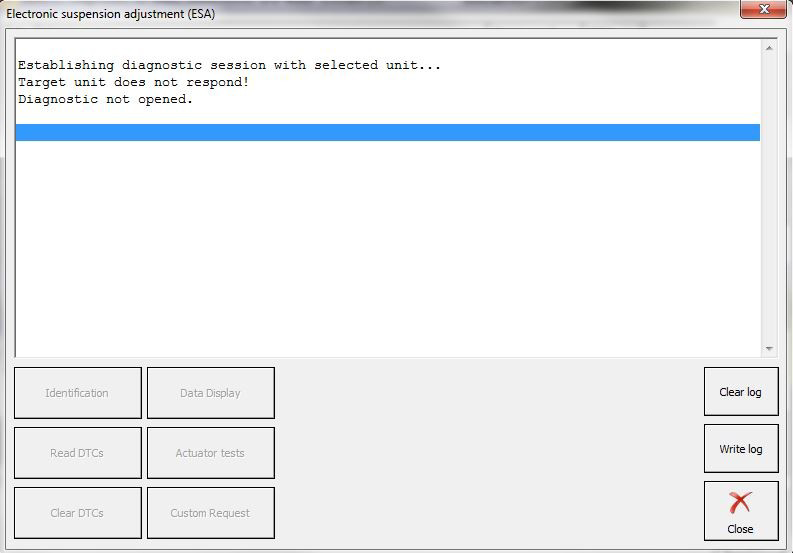
Once the Abrites Diagnostics for Bikes, Snowmobiles and Water Scooters attempts to establish a diagnostic connection, however, the following error message is displayed:
Other connection issues may occur when the transponder programmer is not connected to your AVDI during key learning. You will see the following error:
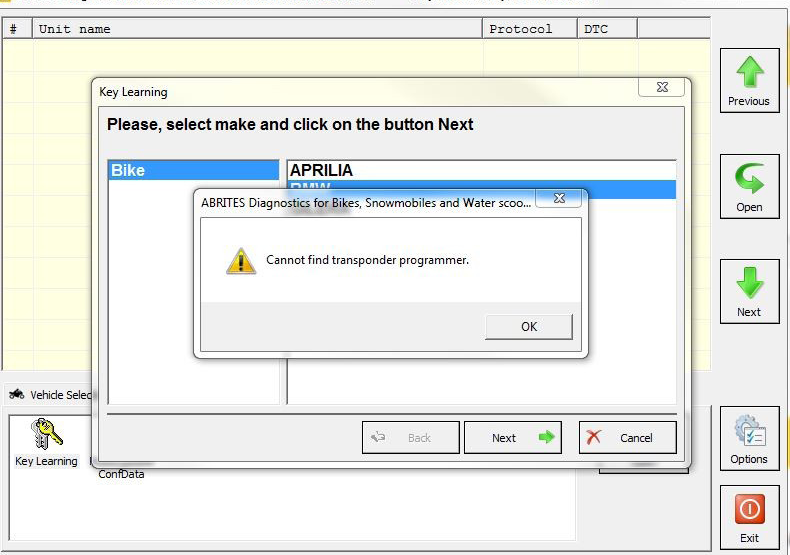
Possible causes for this issue may be
-
The AVDI is not connected to the user’s computer.
-
The diagnostic connector is inappropriately connected.
-
The transponder programmer is not connected.
In both cases please make sure to check the connections or contact support@abrites.com
2. Log files
The log files are an essential part of the troubleshooting process. They are required to establish the root causes of issues, that have occurred unexpectedly. In most cases this is concerning the communication between the AVDI and the modules of the vehicle or the communication between the modules within the vehicle itself. Always make sure to attach the files from when the issue occurred to an e-mail sent to the support team. This will speed up the process of resolving an issue in case it is present. Please note that the log files can be located under: Start -> Programs -> ABRITES software for IDxxxxxx-> Log Files (where IDxxxxxx is your ADVI ID) or in the second page of the “Quick Start” menu under the “LOG” icon. In this directory you will see a list of folders. Please access the “BIKE” folder and copy the “.log” files from the time and date the issue occurred and attach them in your e-mail.
The log files icon in the “Quick Start” menu: