Detecting the vehicle, scanning the modules, reading and clearing faults
Required equipment
- Abrites AVDI interface, connected to the vehicle
- A stable Internet connection
Step-by-step procedure
1. Start the software
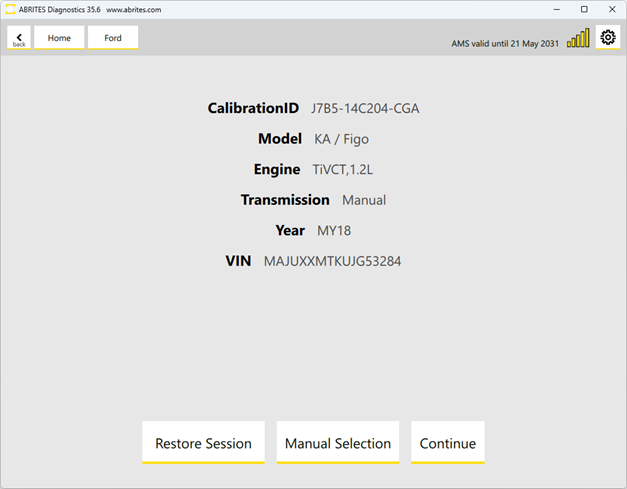
After clicking the Abrites diagnostics for Ford Online icon, you will see the software start up. The software will automatically start detecting the vehicle your AVDI is connected to.
2. If the vehicle is not detected - select it manually
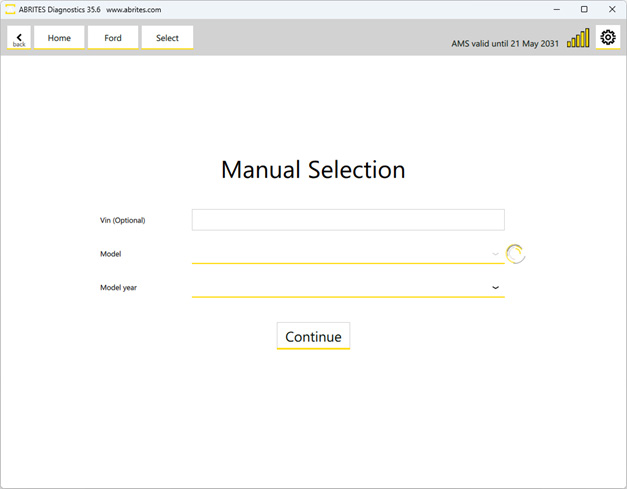
If the vehicle cannot be automatically detected, you can select it manually by clicking the Manual Selection option:
3. Scan the modules
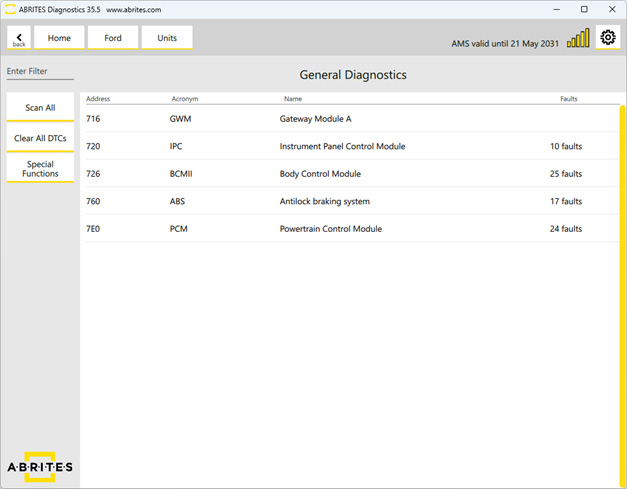
Once the vehicle has been detected, it will scan all available modules in the car and the DTCs stored in them, automatically. You can also do a scan by pressing the dedicated button on the left hand side, "Scan All".
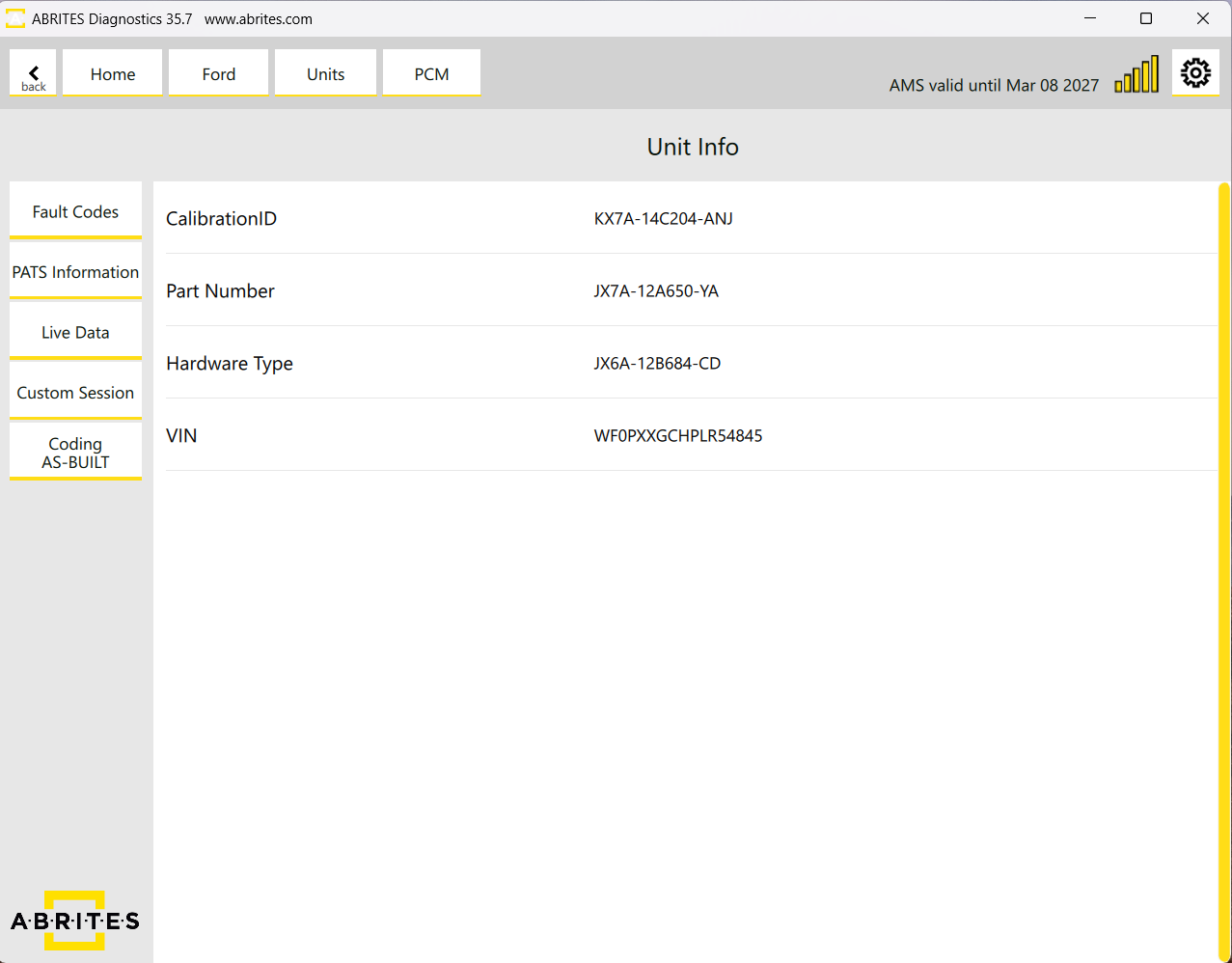
4. Open a unit
Once a unit is opened, you will be able to see the module's identification.
5. Fault codes
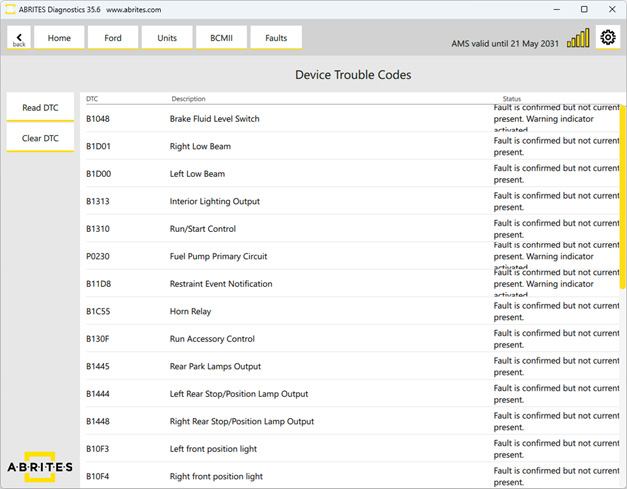
You can read the fault codes stored in the unit from the "Fault Codes" button, and clear the DTCs using the Clear DTC button:
6. Live Data
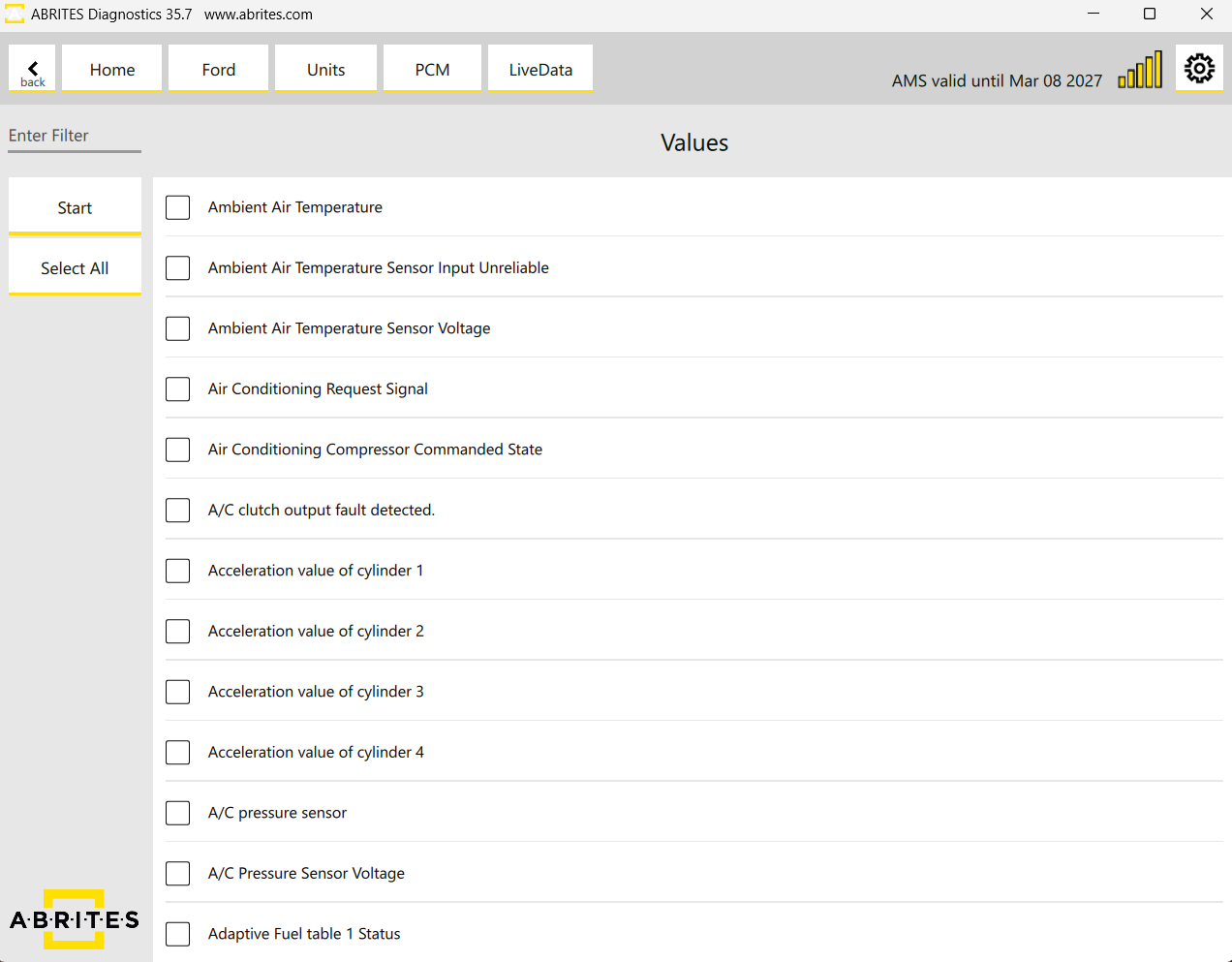
You can select and monitor multiple live values at once by using the "Live Data" option, giving you the flexibility to diagnose the vehicle effectively.