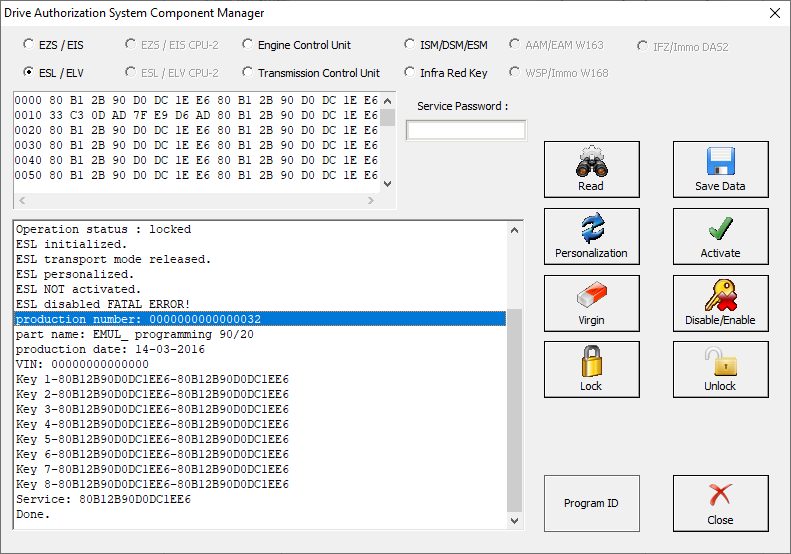
The EM001 Electronic Steering Lock emulator is a 3-in-1 solution that supports all Mercedes FBS3-based models even if a personalisation of the ESL emulator is needed. This is a plug and play solution for some models and it is used when the original Electronic Steering Lock is defective.
The emulator is part of the all new ABRITES design, manufacturing and development process which allows the whole emulator unit to be designed, developed and produced in-house by us.
Supported models
-
A-class (2004-2015) – W169, W176 and related models based on the same platform
-
B-class (2005-2014) – W245, W246 and related models based on the same platform
C-class (1997-2015) – W202, W208, W203, W204, W209 and related models based on the same platform E-class (2002-2016) – W210, W211, W212, W207 and related models based on the same platform
S-class (2005-2013) – W221 and related models based on the same platform
Mercedes Vito/Viano (2003-2014) – W639
Mercedes Sprinter/Dodge Sprinter (2006-2018) – W906
An AVDI interface with a valid AMS is required when the ESL emulator has to be personalized (W176, W204, W212, etc.).
Setting up the EM001 emulator
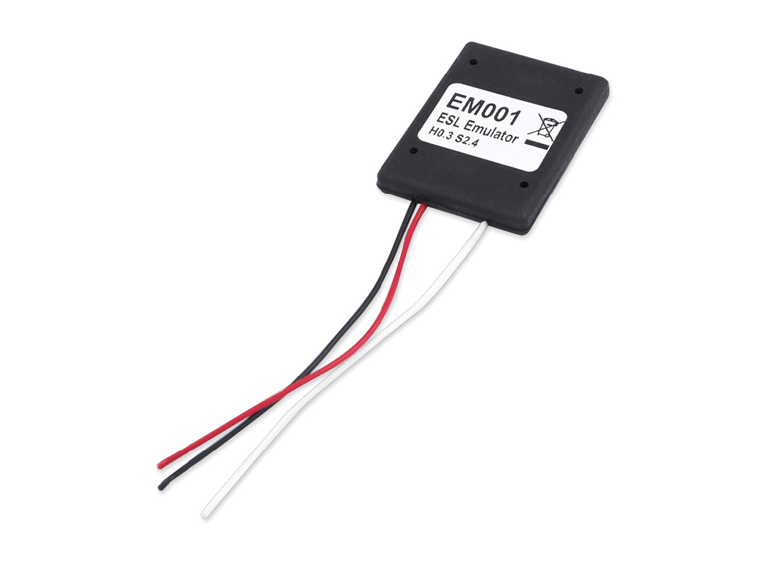
The models for which the ESL emulator supports, can be selected using the toggle switches on the back side of the emulator, thus, you can benefit from a 3-in-1 solution
EM001 is a plug and play solution for most models.
Models, which require personalization: W204, W207, W212, W176, W246
For details on EM001 personalization, please check the next page.
When fitting the EM001, please follow the instructions below, and pay attention to the models you are working on. Please make sure the switches are toggled and selected outside the car’s network and disconnected from the power supply.
W176/ W246/ W117 are supported via version 32+ of EM001.
W906 Sprinter and W639 Vito are supported and configured as W203,W208, etc.
EM001 personalization
Important: If you are working on bench, you need to hava a file with the FBS data saved on your computer. You can read the FBS data either from the original ESL or from the EZS, using the DAS Manager special function.
Toggle switches must be set as for W204
Set up: 2 ways you can connect the EM001 - in the vehicle or on bench.
To connect the EM001 in the car, you need to connect it to the ESL connector.
To connect the EM001 on bench, you need to use the ZN151 Distribution Box. There are PIN Connctors in the ZN151 set, which you should use to connect the EM001 to the ZN151. The 3 cables coming out of the EM001 are connected as follows:
-
The white cable is the K-Line and needs to be inserted into the K7 socket of the ZN151
-
The black cable is the GND and needs to be connected to GND socket of the ZN151
-
The red cable is +12V and need to be connected to B+ (+12V) socket of the ZN151
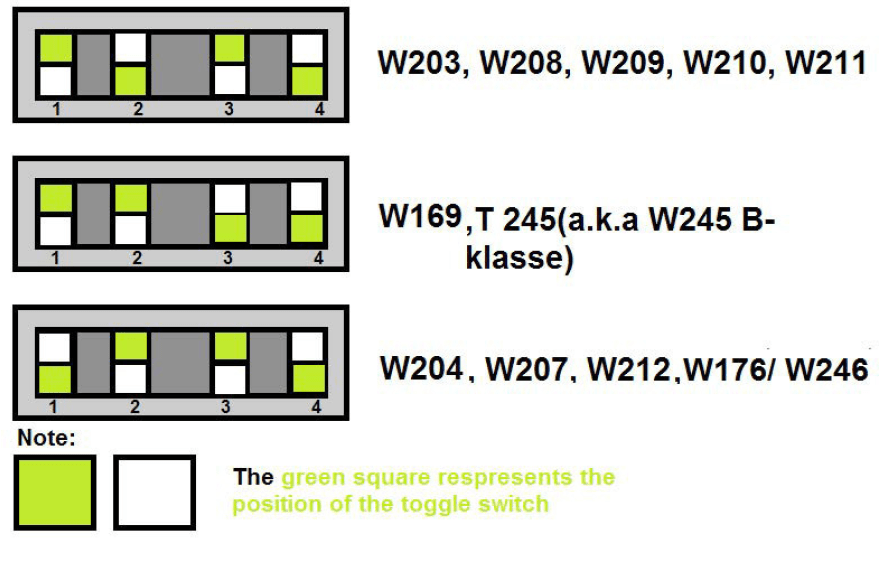
Open the Mercedes software > Special Functions > DAS Manager > ESL/ELV section
Click read and than click the “Personalize” button. If you are in the vehicle, you would be able to now read the FBS data from the vehicle. In both cases (in the car or on bench) you will be able to now load the file with the FBS data and personalize the emulator.
This procedure is available for all AVDI owners with valid AMS and active MN026/MN032 license.
ESL Connector Types
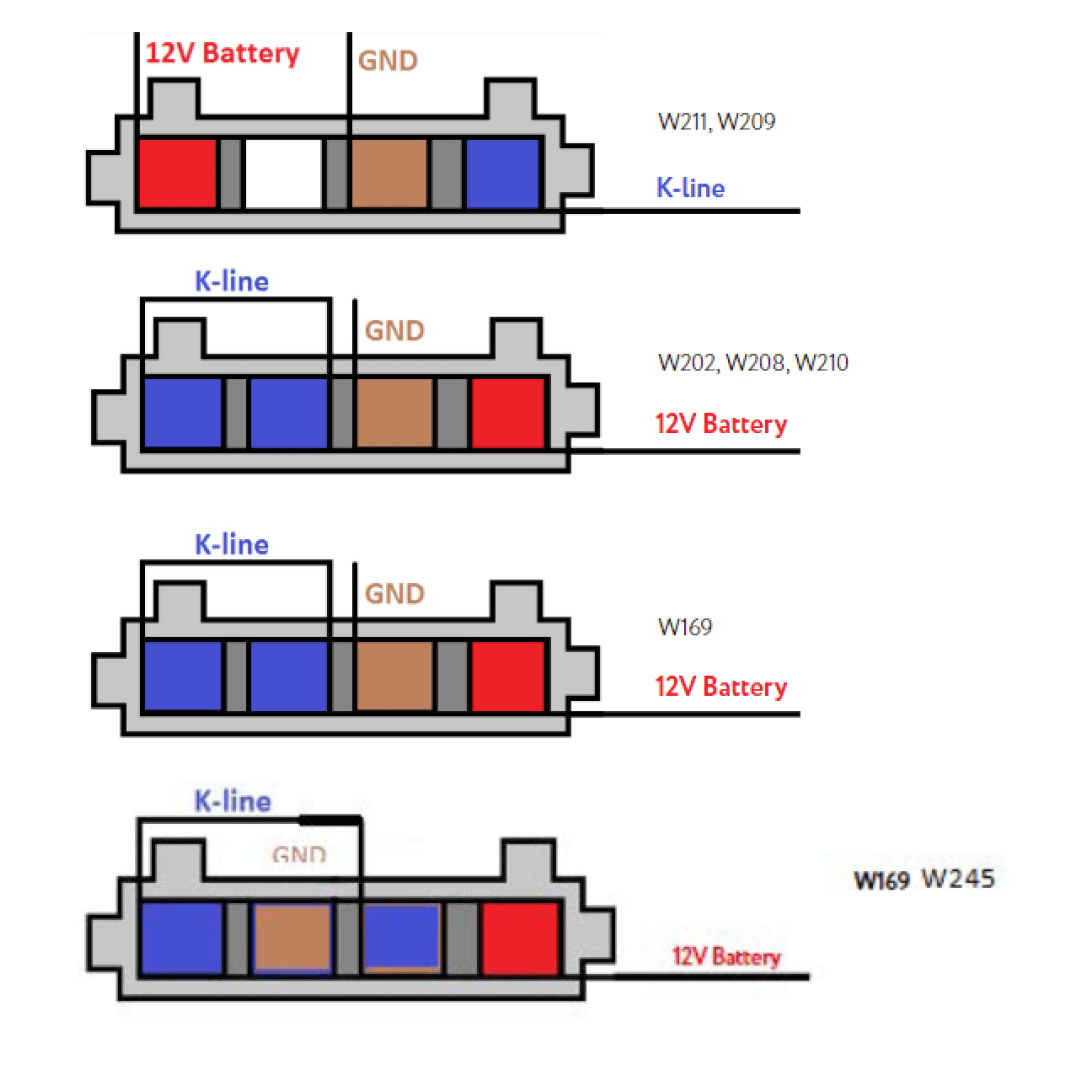
Below you will see some examples of the connection pinouts for the different Mercedes models. For the models W169/W245 there are 2 types of ESL connectors. Please use a multimeter to determin which are the correct slots of the K-line - they usually have voltage between 9V and 12V.
- W203 ESL pinout for vehicles produced up to May 2002
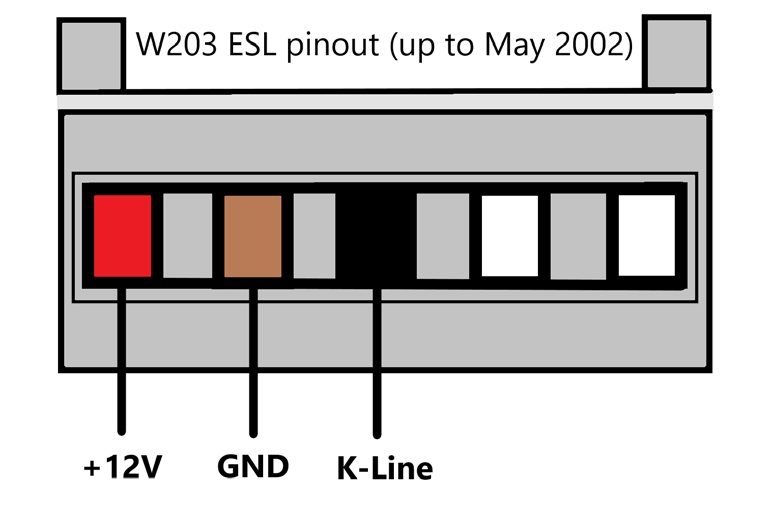
PIN 1 - +12V
PIN 2 - GND
PIN 3 - K-Line
- W203 ESL pinout for vehicles produced after June 2002
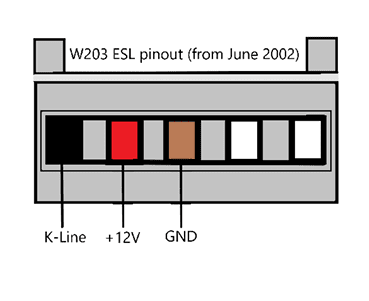
PIN 1 - K-Line
PIN 2 - +12V
PIN 3 - GND
- W906 ESL pinout
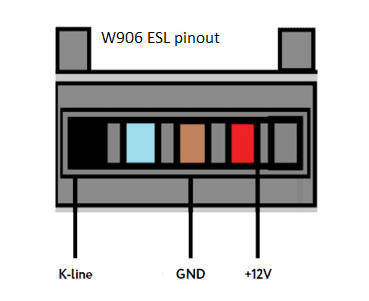
PIN 1 - K-Line
PIN 3 - GND
PIN 4 - +12V
- The pins on the W204/ W207 /W212 are numbered.
Please pay attention to the digits next to each pin
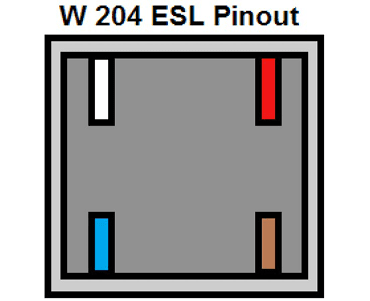
PIN 1 GROUND
PIN 2 POWER
PIN 3 K-line
- W176/ W246 A class/ B class ESL connector plnout.
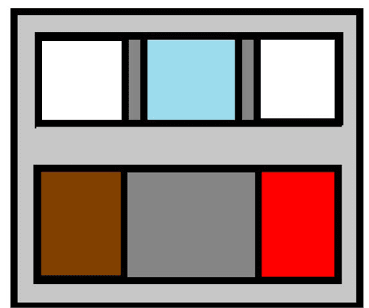
Brown - Ground
Red - Power 12V+
Blue - K-Line
EM001 Update
All DIP switches must be toggled upwards to the ON position.
The emulators are updated to the latest software version using the ABRITES Diagnostics for Mercedes software.
Set up: There are 2 ways you can update the software - in the vehicle or on bench.
To update the EM001 in the car, you need to connect it to the ESL connector.
To update the EM001 on bench, you need to use the ZN151 Distribution Box. There are PIN Connctors in the ZN151 set, which you should use to connect the EM001 to the ZN151. The 3 cables coming out of the EM001 are connected as follows:
-
The white cable is the K-Line and needs to be inserted into the K7 socket of the ZN151
-
The black cable is the GND and needs to be connected to GND socket of the ZN151
-
The red cable is +12V and need to be connected to B+ (+12V) socket of the ZN151
You need to power-up the DS-Box simulatenously using the B+ and GND sockets as the Emulator operates on 12V.
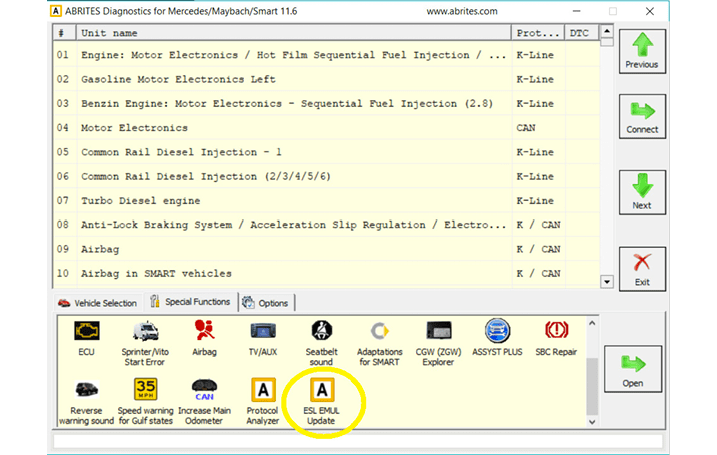
Once the emulator is connected, you can proceed with starting the Abrites Diagnostics for Mercedes software > ESL EMUL Update special function
Here is how to set up the EM001 update on bench, using the ZN151 with the PIN connectors from the set, and the ZN074 set to power up the DS-Box.
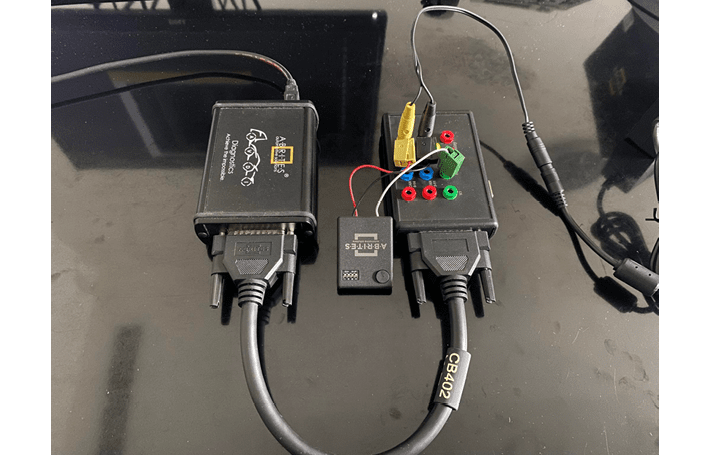
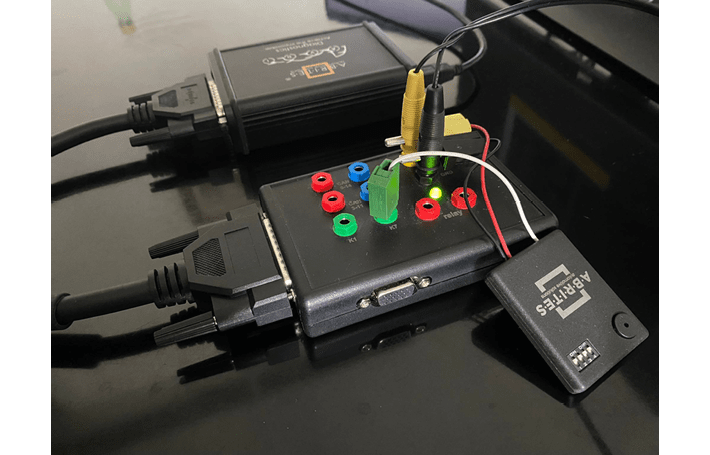
Here is how the procedure is executed:
Make sure all switches are at position ON
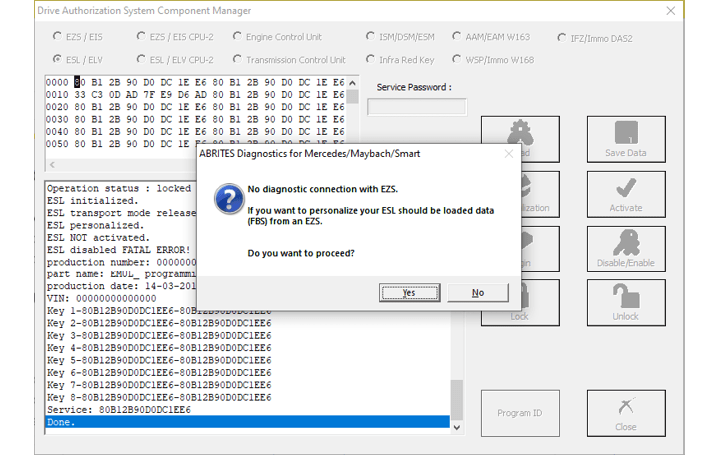
Start the ESL EMUL Special function and press yes on the next screen to continue.
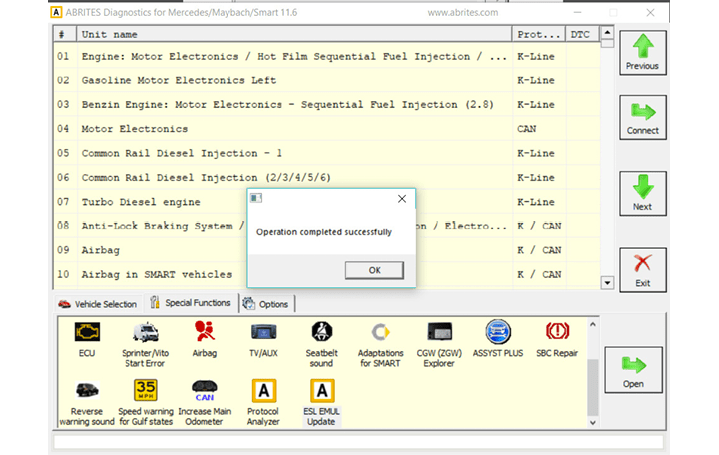
Note: Once the emulator is properly connected and powered up it will beep once. The emulator will also beep once when the procedure is started, and beep once at the end when finished successfully.
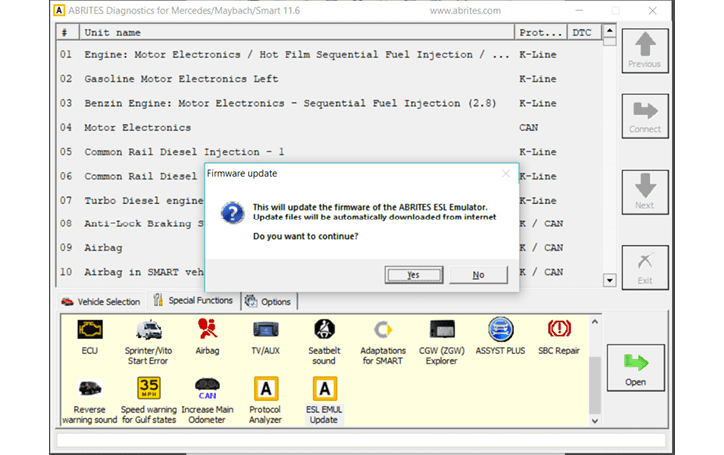
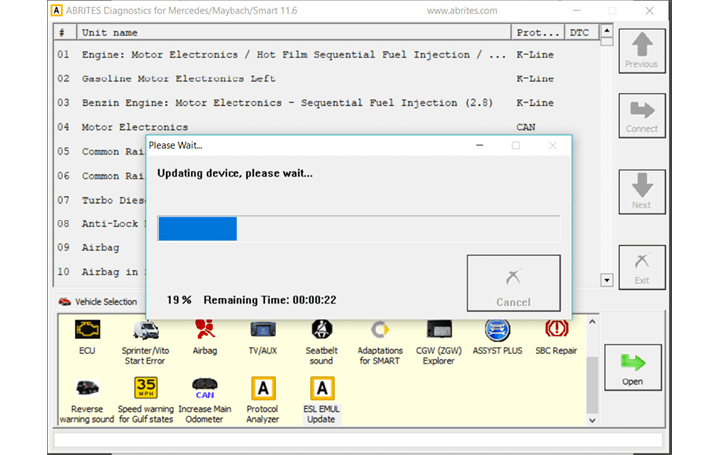
The device is being updated, the message at the end and a shot beep sound will ensure that the procedure is funnished with success.
To determine the software version of the emulator, you need to have it connected on bench or the car. Toggle switches must be set as if working with a W204.
Once it is connected properly, you can open Special Functions > DAS Manager > “ESL/ELV” field. In this case, it is version 32 (0000000000000032):