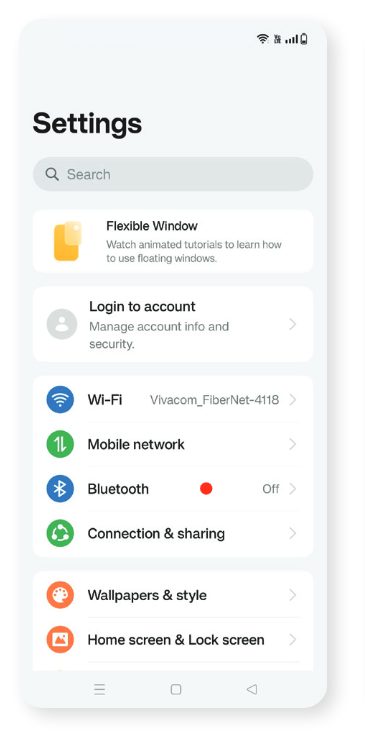
To begin working with the Mobile Diagnostics Interface, it will be necessary to first enable Bluetooth on the given Android, IOS, or HarmonyOS based mobile device.
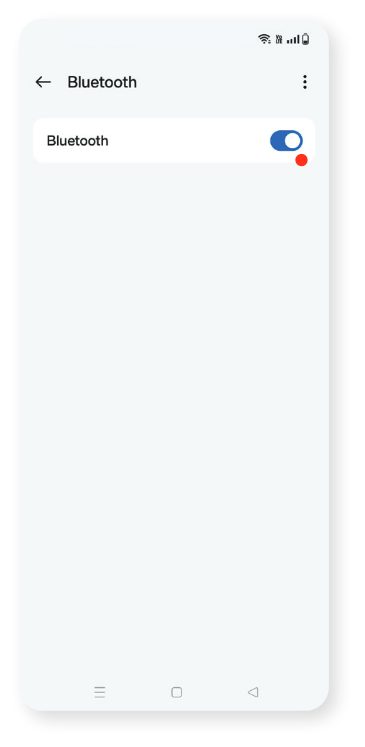
This can be done by going to the Settings Menu , then Bluetooth , then Enable . Once the bluetooth is enabled the MODI application can be opened and set up.
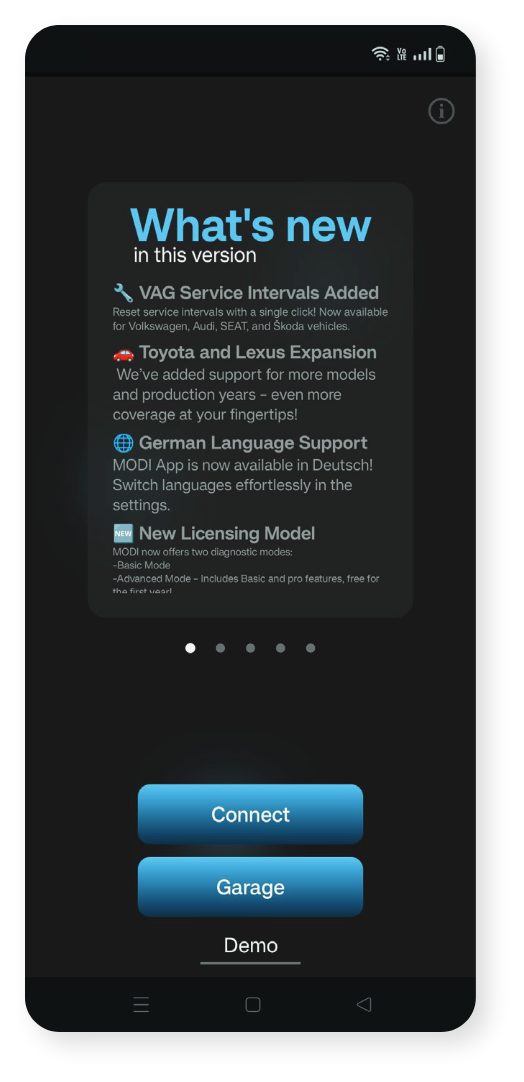
Once the software is opened, the following options will be provided
-
The first one is to connect to the MODI device (therefore a scanning process is automatically launched by the application, in order for your device to be discovered). This could be done by simply pressing the “Connect” button which will be displayed on the provided device. Keep in mind that in order for the device to be discovered by the application it needs to be supplied with power*. In order to supply your MODI device with power, you will need to insert it in the vehicle’s OBD II port. Following the scanning process, a list device window will appear, where the personal MODI of the user should be selected.
-
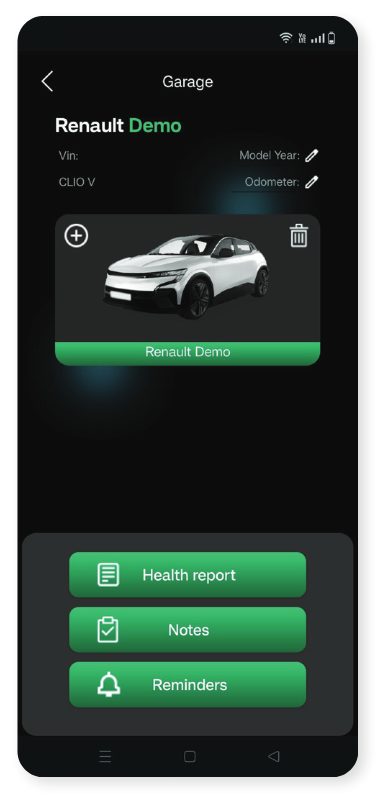
The Second option is Virtual Garage, this is a virtual space for storing your vehicles, you could access it anytime, it is not needed the MODI device to be connected.
-
The Third option that will be provided is to run a DEMO process. The DEMO process does not require the MODI device to be inserted in the vehicles OBDII port.
Once the MODI is connected to a power supply and the Bluetooth of the device used is ON, the MODI device which is going to be used could be selected. The Mobile Diagnostics Interface can now be used.
The DEMO button works to show you a basic example of how the application works without the MODI device, you can also use generic OBD2 option when you connect to the MODI device option where you can use it without subscribing for the application. With Generic OBD2 you can scan few modules of the vehicles, read and clear DTCs. Please note that compatibility and options depends of the vehicle manufacturer and MODI Abrites Ltd. does not guarantee that Generic OBD2 option will work on each vehicle.
- The next step is to select the brand which is going to be worked with, after that the MODI will start an automatic vehicle identification.
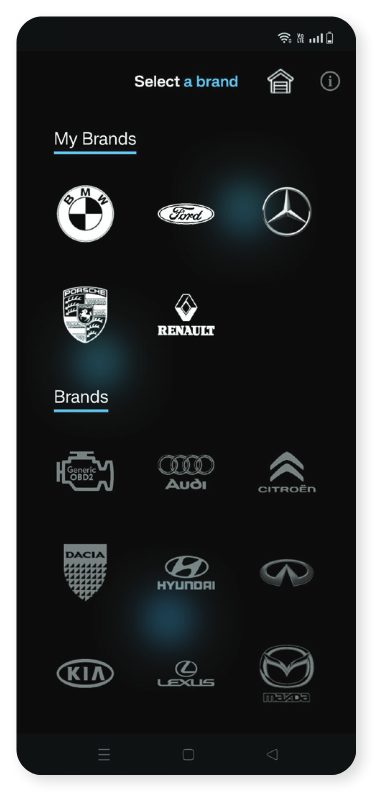
The Garage button opens the virtual garage, you can save your favorite cars there manually, or check the option to automatically add all scanned vehicles inside. You can access Virtual Garage anytime, without need to use or connect your MODI device.