The Abrites diagnostics for Opel Vauxhall is installed together with the rest of the Abrites diagnostic software applications as a part of the Abrites diagnostic suite provided to the user via e-mail. The user can start the software by clicking on the appropriate icon from the Abrites “Quick start” menu.
Once the application is started the main software screen will open
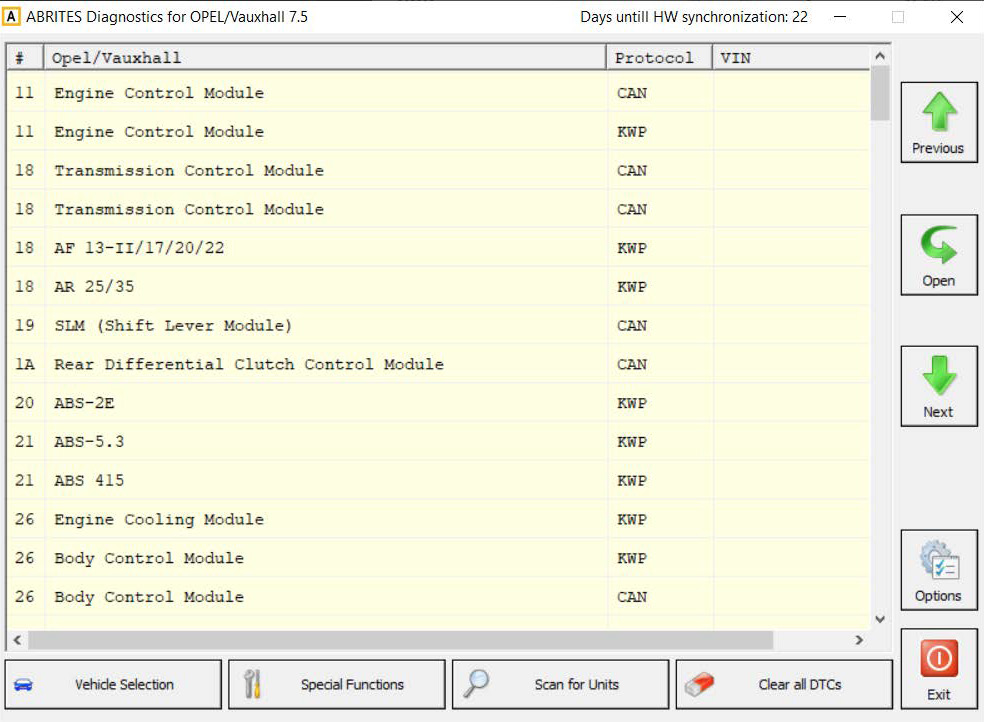
This is the main screen of the software and it shows all the navigation buttons as well as the ones for vehicle selection, scanning and general diagnostic trouble code (DTC) clearing. Once the Diagnostics is connected to the vehicle and the scanning of the available modules is performed the existing modules for the particular car will be displayed. From the drop down menu you can manually choose the brand and model of the vehicle you are working with.
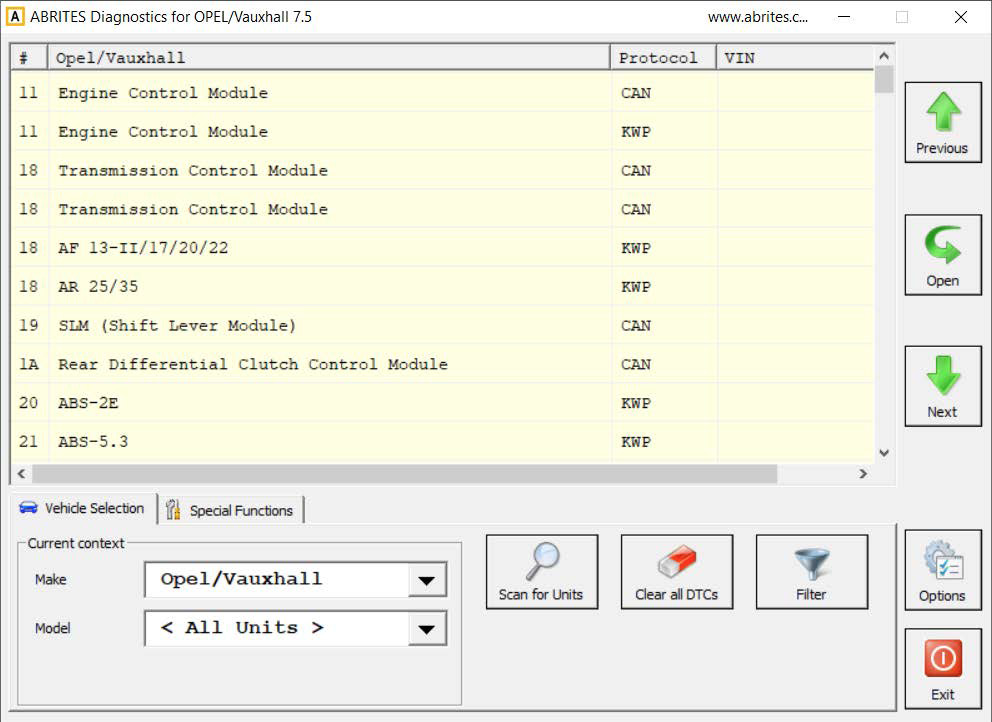
This screen will display all the modules that are installed in the vehicle, as well as the protocols they use for communication, their VIN numbers and the number of diagnostic trouble codes (DTC) in each electronic module. The options here will allow you to clear all the diagnostic codes automatically for all units.
2.1 Module Identification
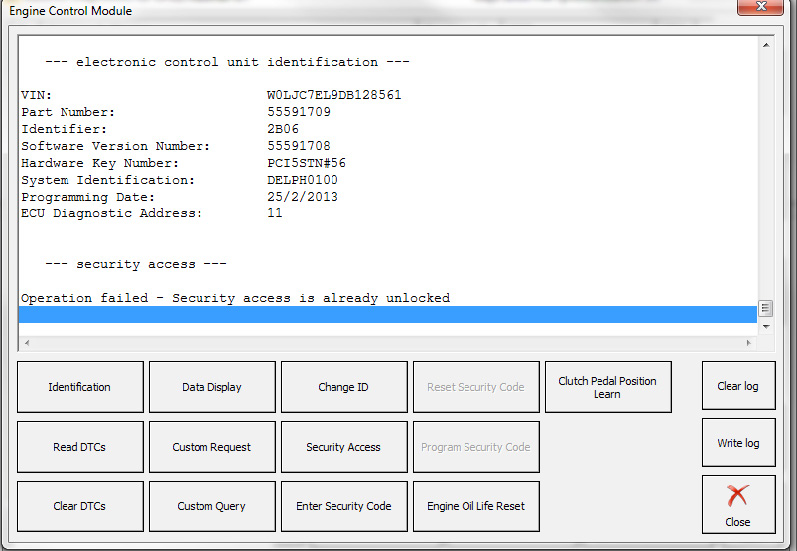
Once a single module is selected (using a double click from the diagnostic menu) the menu for this specific module is displayed:
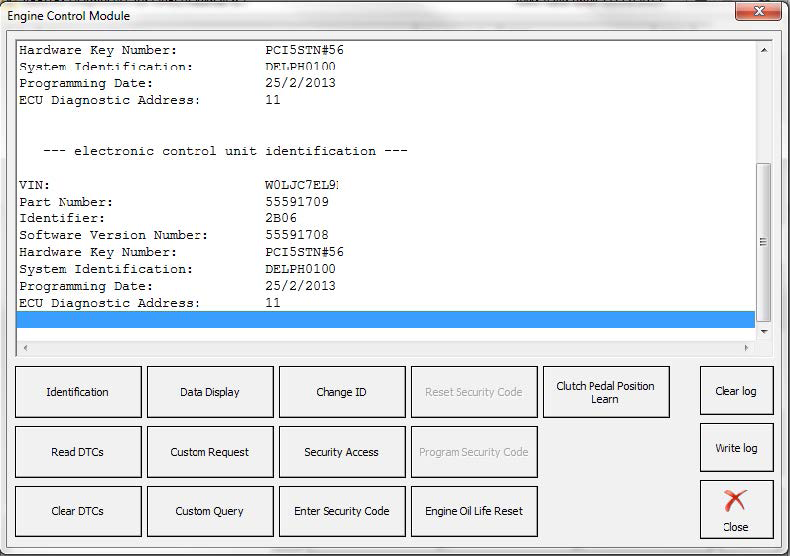
The first option from the list of buttons is the identification option. This displays all the relevant data connected to the electronic module including: VIN, part number, ID, software version, date of programming, electronic unit manufacturer and other options.
2.2 Read and Clear Diagnostic Trouble Codes (DTCs)
When selecting the Read DTC button the diagnostic trouble codes from the selected electronic control module are displayed in a list in order to be viewed and analyzed.
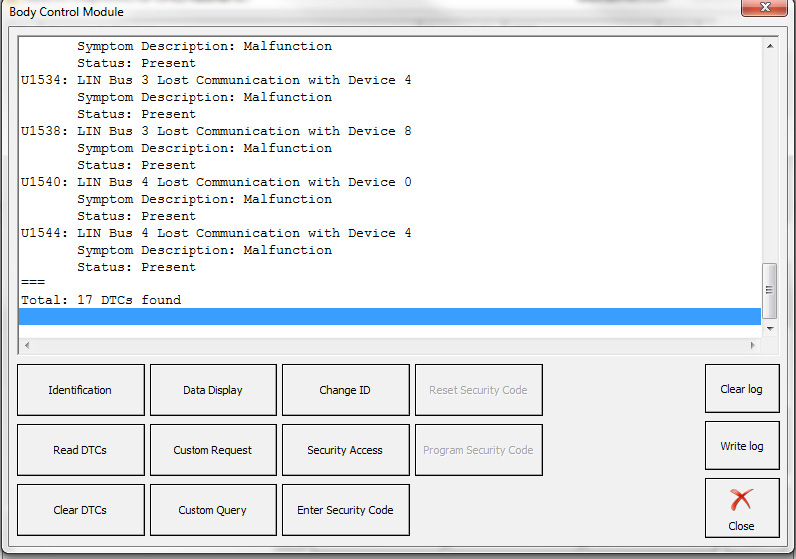
The software shows the trouble codes, their descriptions and their occurrence. Given these details, an analysis of the trouble codes can be made in order to determine the source of the issue. When this analysis is perormed the diagnostic trouble codes can be cleared.
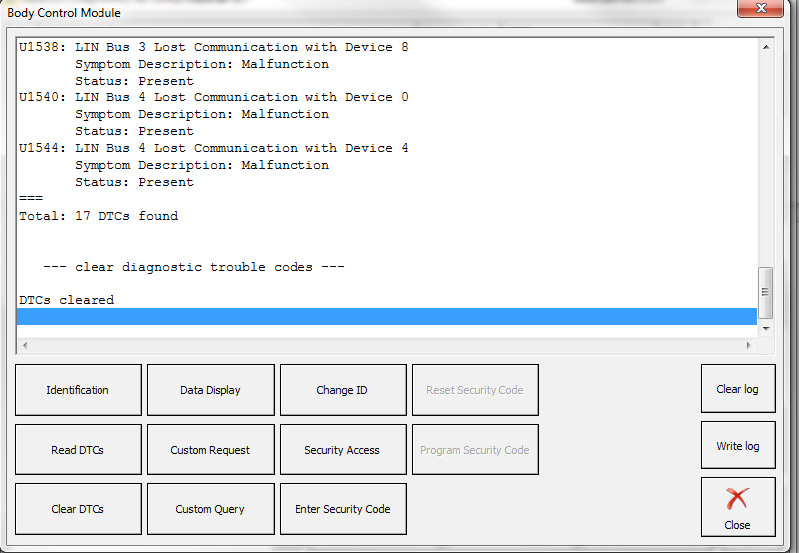
When selecting the “Clear DTCs” button you will be able to clear the diagnostic codes immediately. If a DTC is not cleared upon second reading after clearing – the issue should be revised and repaired if needed.
2.3 Live Data Display
Displaying live data from the electronic control modules in real time offers much needed assistance when analyzing the cause of an issue. It helps to determine co-relations between events for example if the there is a delay between pressing the accelerator pedal and the climbing of the RPM of the engine.
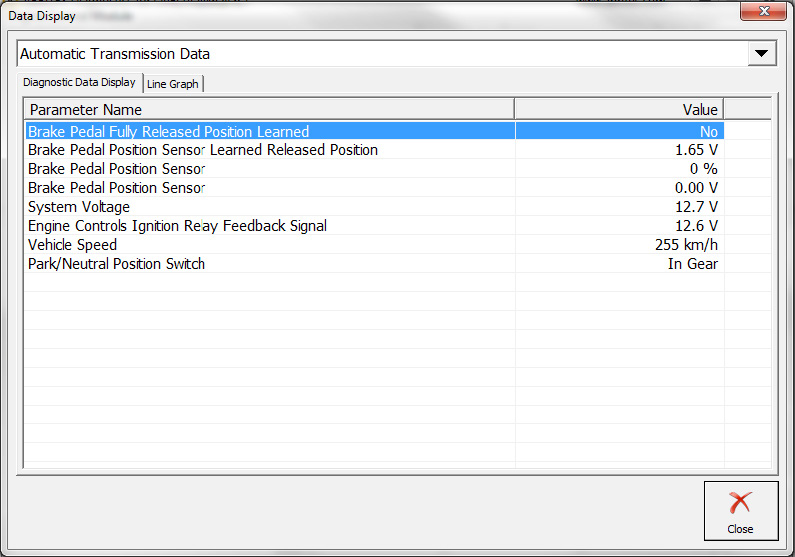
All the data is displayed in a table. The information provided by this function can be irreplaceable for determining the cause of a fault. Additional options for the data display are also available. There is an option to test and view many details.
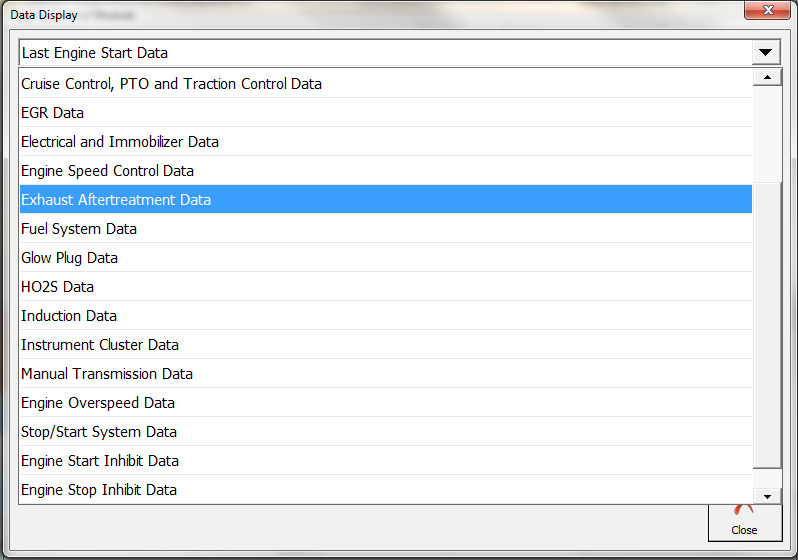
The option to activate and deactivate features is also available.
2.4 Engine Oil Change Reset
Once a workshop performs a maintenance on a vehicle, a part of which an oil change may be they need to be able to “tell” the vehicle’s electronic modules that the maintenance has been performed. Once the Engine oil reset button is pressed the software will reset the vehicle’s counter thus telling the vehicle that it’s oil has been changed.
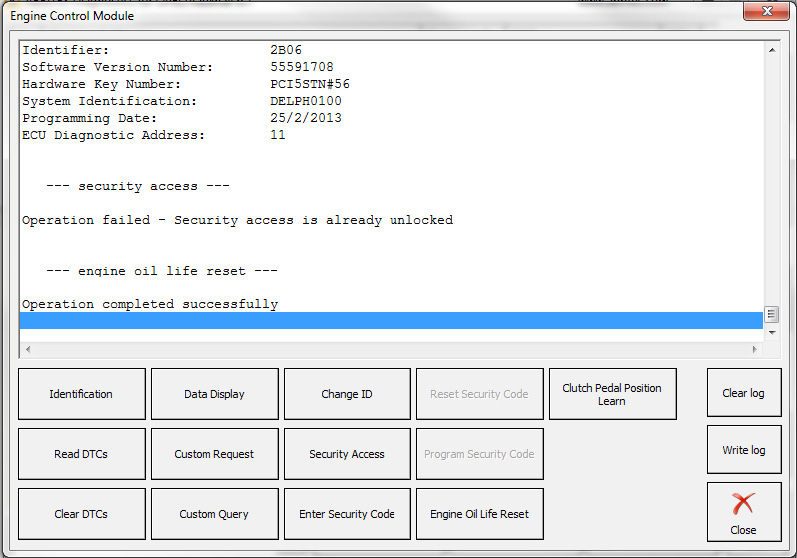
The “Clutch pedel position learn” button allows the clutch position to be learned by on board diagnostics (OBD)
2.5 Security access and ID change
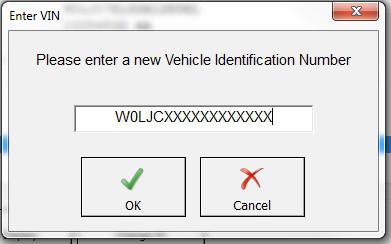
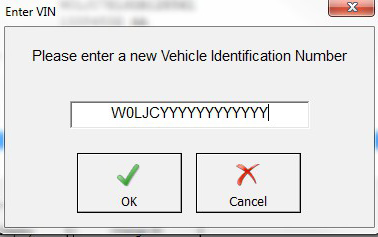
Every time a second hand module is adapted to a vehicle in order to adapt this unit you will need to use the security code of the vehicle and the module in order to replace it. Once this module is replaced you will also need to change the ID of the module in order to match the vehicle thus ensuring it’s correct operation: