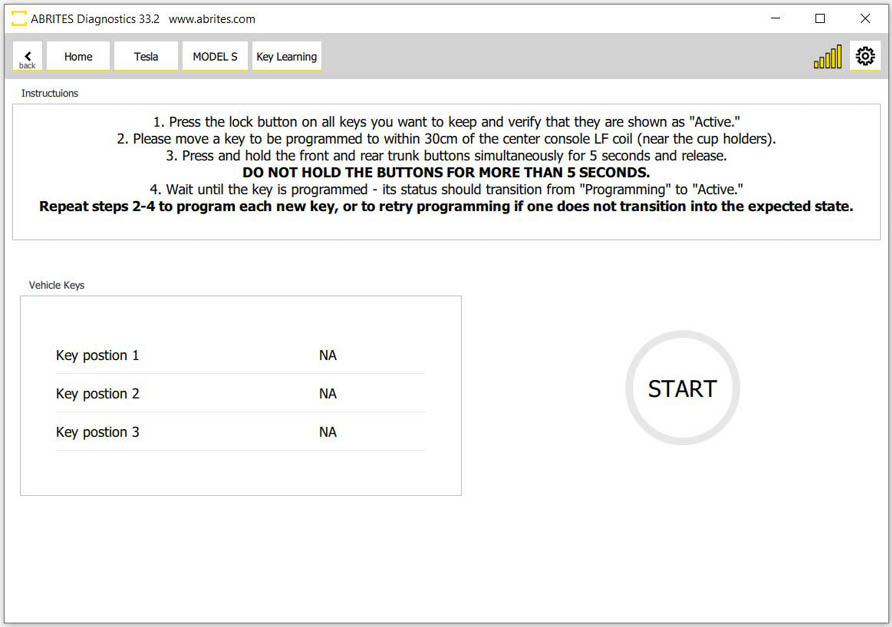
The key learning special function allows for the addition of a spare key for Model S vehicles completely through the OBD port. To initiate the key learning procedure, please follow the steps outlined below, along with accompanying screenshots, after starting the Tesla software:
Select the Model
Upon launching the Tesla software, navigate to the model selection screen. Choose the Model S from the available options. Locate and access the Key Learning menu on the left hand side of the main screen of the software. . This menu is specifically designed for managing key-related operations.
Follow On-Screen Instructions
Within the Key Learning menu, press and hold the start button to initiate the process. The software is guided and will tell you everything that needs to be done. The instructions will guide you through the step-by-step process of adding a spare key.
By adhering to the instructions displayed in the software, you can successfully complete the key learning procedure, ensuring the seamless addition of a spare key to your Model S vehicle.
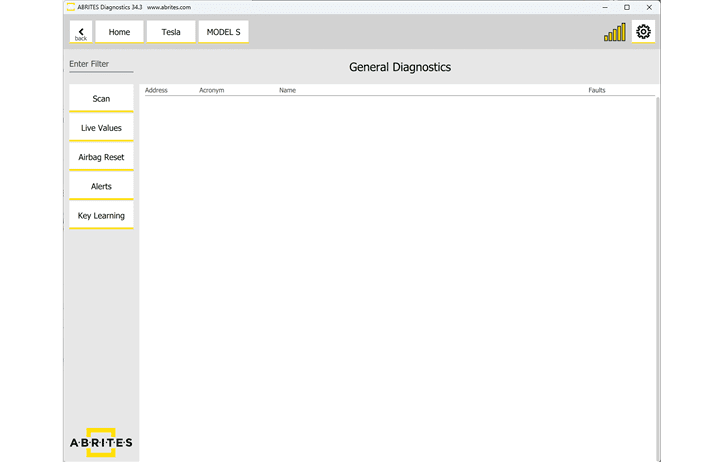
Note: Whenever doing the key learning, make sure to follow all the steps to make the proper connection as described in chapter 3 - “Using the Abrites diagnostics for Tesla”.
The software will open the next window which consists of 4-5 steps that are to be followed in order to program one or more spare keys:
-
Press the lock button on all keys you want to keep and verify that they are shown as “Active”
-
Move a key to be programmed to within 30cm of the center console LF coil (near the cup holders)
-
Press and hold the front and rear trunk buttons simultaneously for 5 seconds and then release them
Important: Do not hold the buttons for more than 5 seconds!
- Wait until the key is programmed - its status should change from “Programming” to “Active”
Repeat steps 2-4 to program each new key or to retry programming if one of the keys does not change from “Programming” to “Active”.