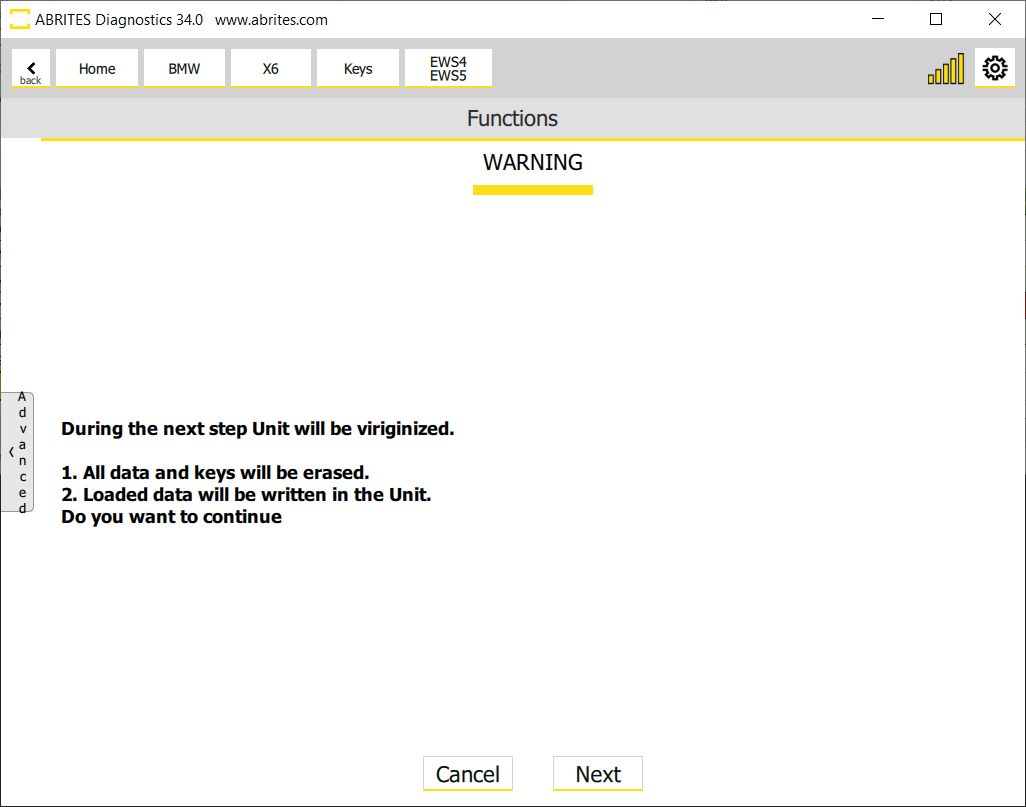
In order to adapt FEM/BDC unit you need to have it in virgin state. To make the FEM/BDC unit virgin, you need to prepare it first. Once the unit is prepared, go to “Keys And Start Synchronization Menu” and open the “EWS Manager”. Once the preparation procedure is complete, you will find the “EWS Functions” Menu > and the Virginize option, which is a one-click solution at that point (after the unit is prepared)
It is highly IMPORTANT to supply 13.6 Volts, or more, so that the procedures can run smoothly and finish successfully. An external power supply is a must. Below you can find all the steps and menus in screenshots that need to be followed:
This procedure prepares the unit into a state, ready to be programmed - virgin. In this state, the unit does not contain any particular data for a vehicle - no ISN, no immobilizer related data, etc. The virginize procedure can be used from the Keys and Start synchronization menu > EWS Manager Functions > Virginize.
Virginized unit can later be adapted with the use of FEM/BDC Adaptation procedure. Please note that if this process of unit adaptation (with virgin unit) is used, you would need to program key so that the vehicle can start and abe functional. For that, refer to the Program Key procedure.
If you use the “Restore EWS Data” option, the unit will be virginized automatically, before the new data is uploaded.
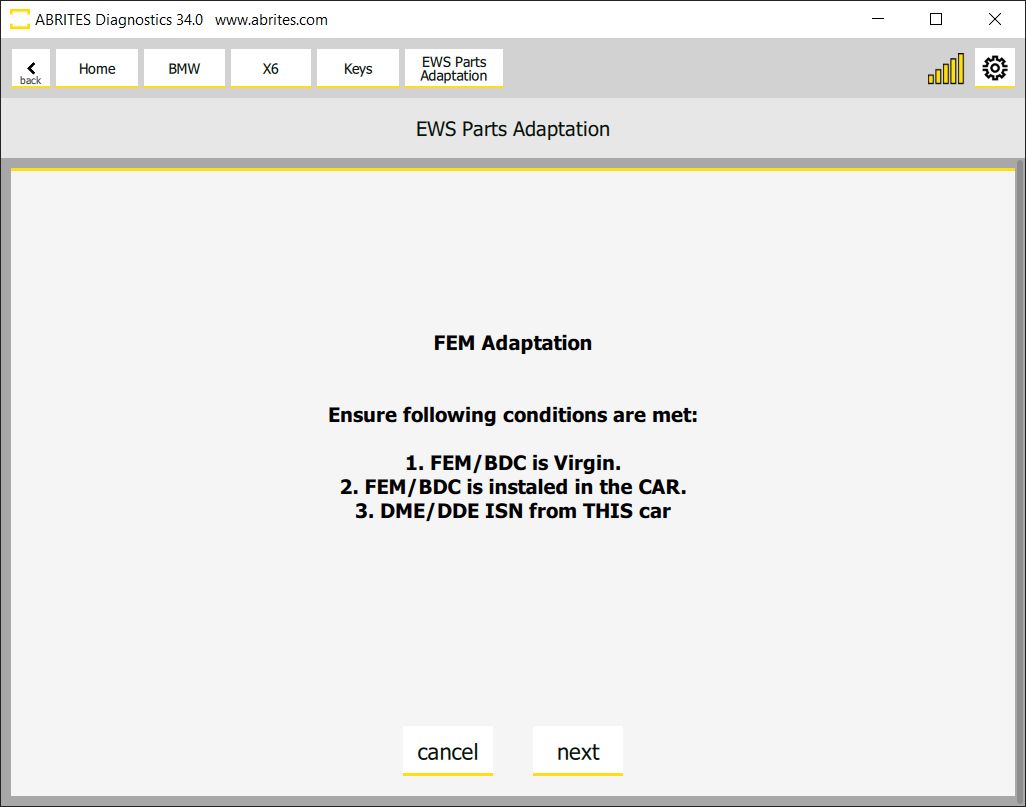
In order to adapt the unit you need to have it in Virgin state, the procedure is explained above.
The software is very user friendly and made as a wizard (guided) so all you need to do is follow the onscreen messages
There are two situations when FEM/BDC Adaptation is required - of course when you need to replace the unit, here are the two sub-options:
1. When the donor unit is available - in this case if the unit is partially functional, and you are able to read it, you can use the EWS Manager Functions and Save the EWS data with the use of DME/DDE ISN, or with a working key, so that you can save the EWS data of the original unit to a file. With that file, the donor unit can now be prepared with the EWS Manager, and than you can use the “Restore EWS Data“ option and write the file saved from the original unit into the donor unit. Using this option would make the donor FEM/BDC unit just as the original one, the working keys will be saved, and the car will be ready to start. Restore EWS Data first makes the unit virgin, than writes the backup file you have chosen * If you decide to use the “Save short immo data option“ in order to obtain a back-up file, keep in mind that this short immo data does not have everything that is required, and you would have to manually input the ISN, VIN, and unit frequency.
All these steps are described in the corresponding sections.
2. When the donor unit is not available - in this situation you have a car with no FEM/BDC unit, and a donor unit. You would now have to start the EWS Manager procedure (all details available in the corresponding section) and prepare the unit, once ready and the EWS Manager functions are available, Virginize the donor unit. After that the adaptation process goes as follows:
Open Keys and Start Synchronization > EWS Parts Adaptation > FEM/BDC Adaptation. Here you can use the virgin donor unit and adapt it to the vehicle.
N.B. After this procedure, you would have to program key to the vehicle, so that it is functional.
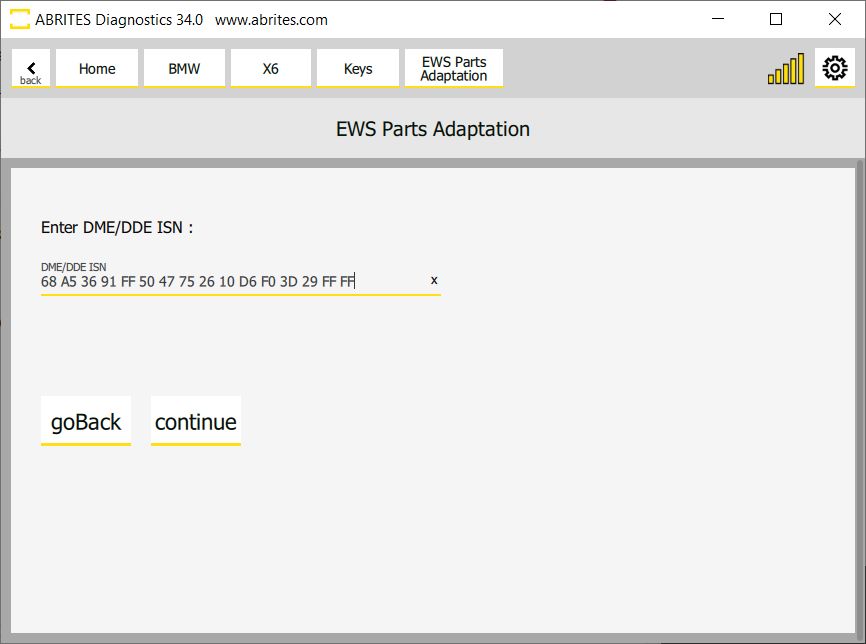
You have to start with the FEM Virginize procedure, please refer to the Virginize section for details. You need to follow the instructions of the software, and once asked, you need to write the ISN and the VIN.
1 Program/Reflash the FEM/BDC unit
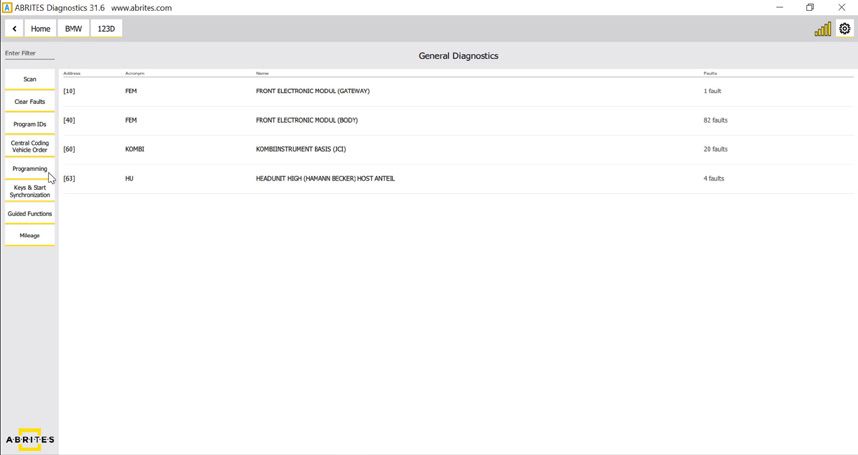
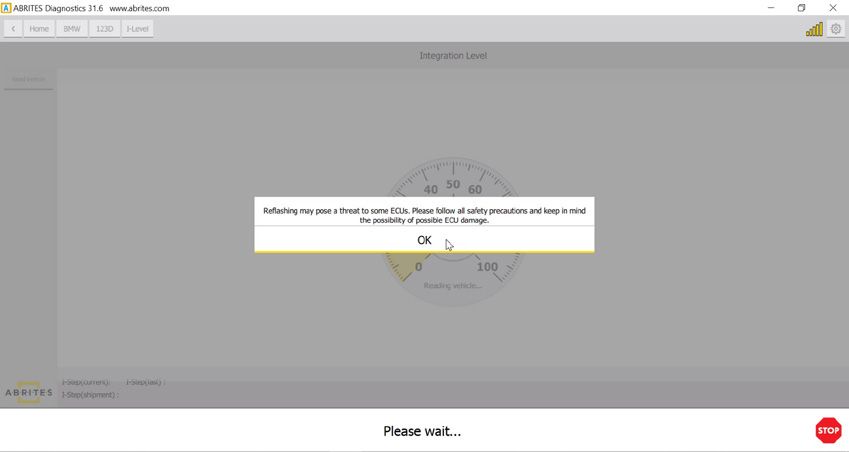
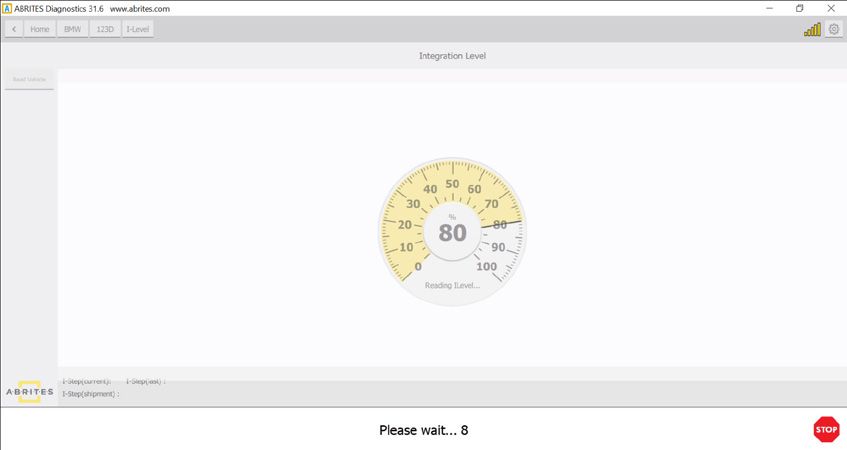
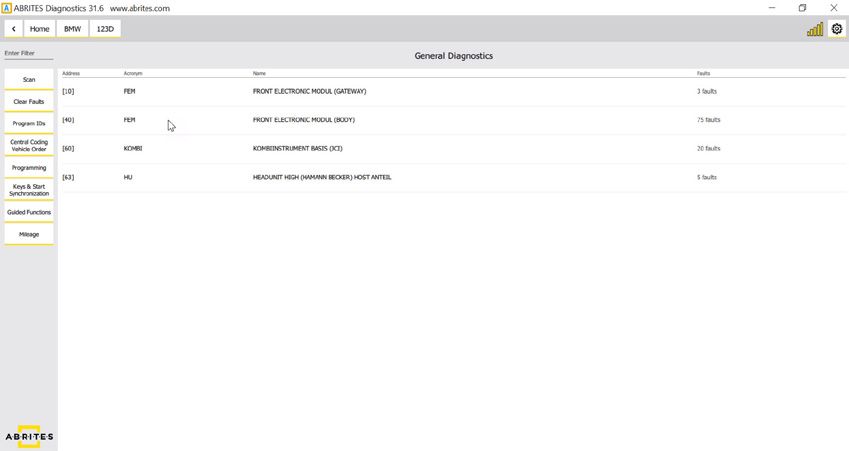
Select 40 FEM FRONT
ELECTRIC MODULE (BODY)
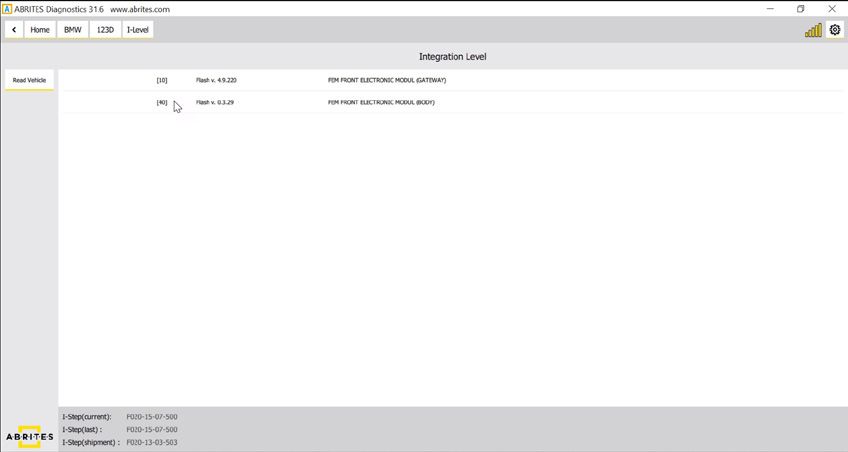
There are two flashes/applications that have to be written to the unit.
The software will automatically select the correct flash/application versions for the unit + coding (if available).
It is also possible to select a different version by clicking on the second flash.
Click on “Update” to start the flashing procedure
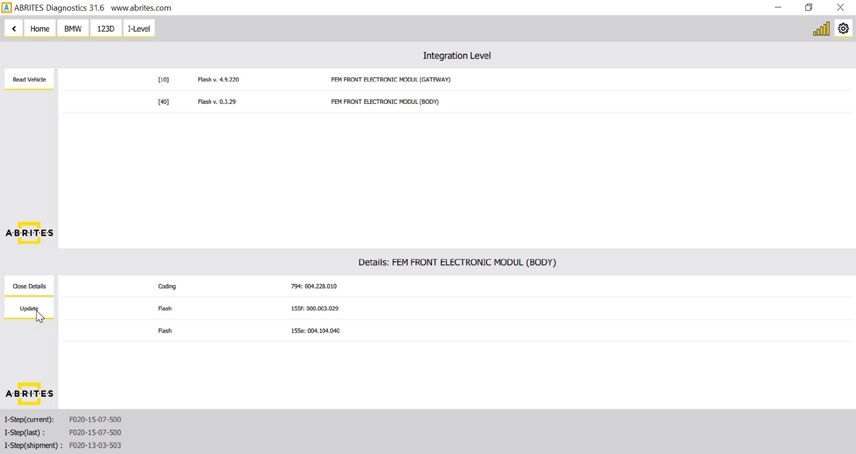
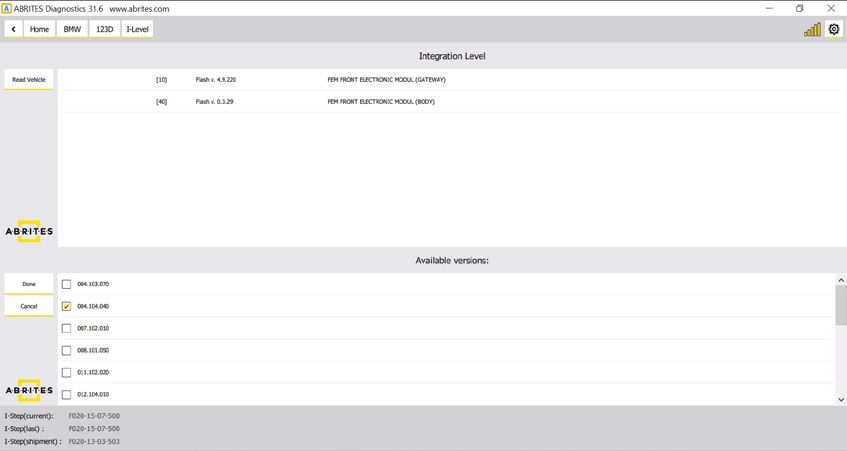
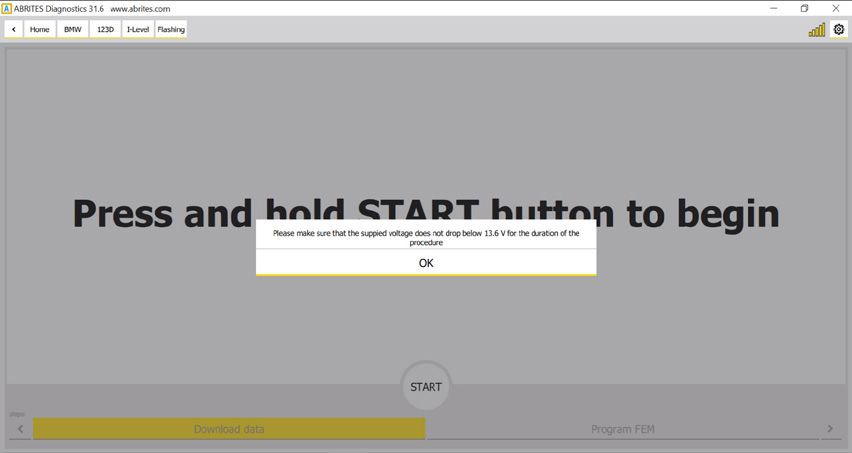
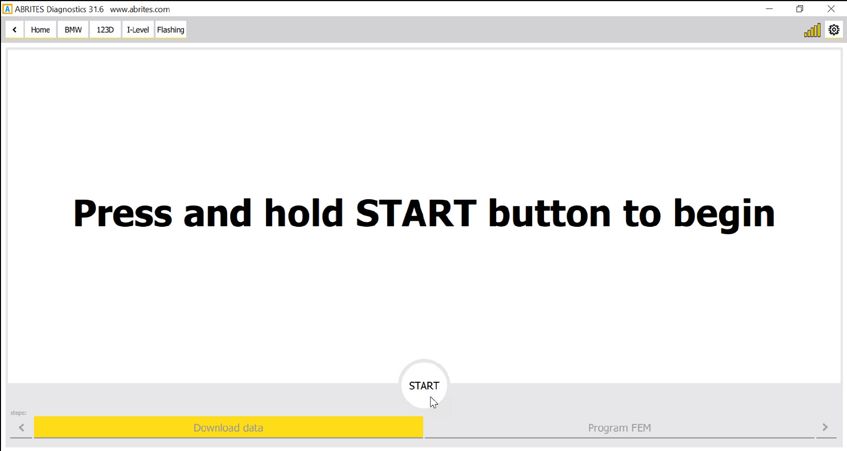
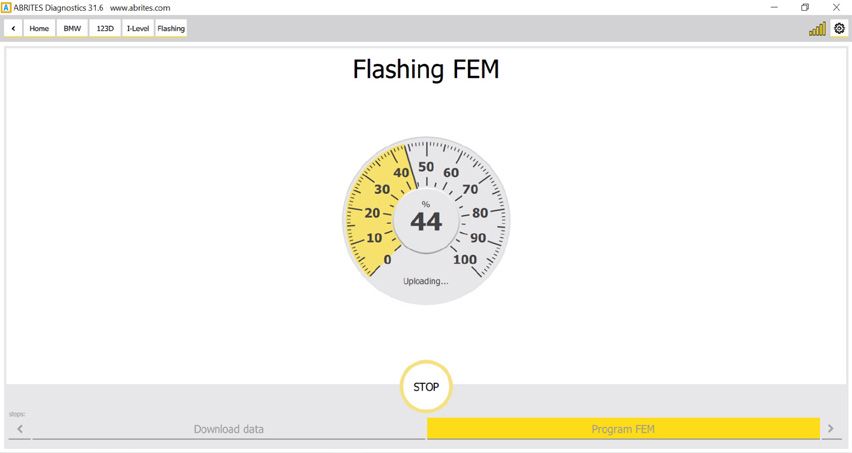
If a coding for the unit is available it will be also written to the unit:
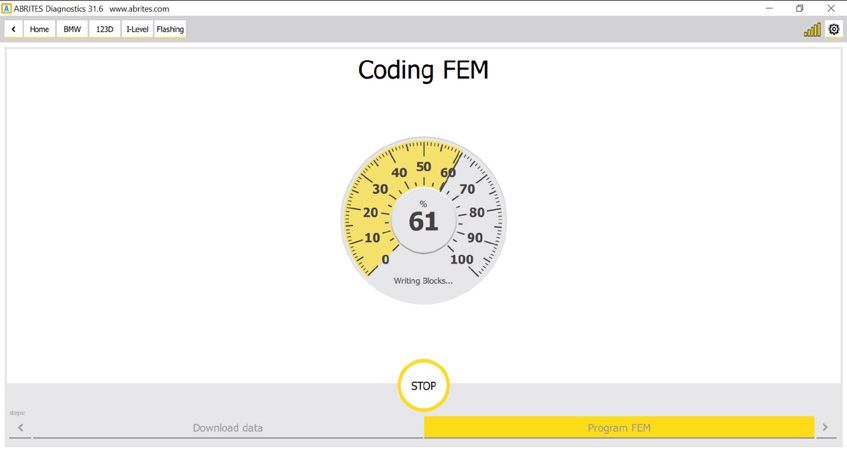
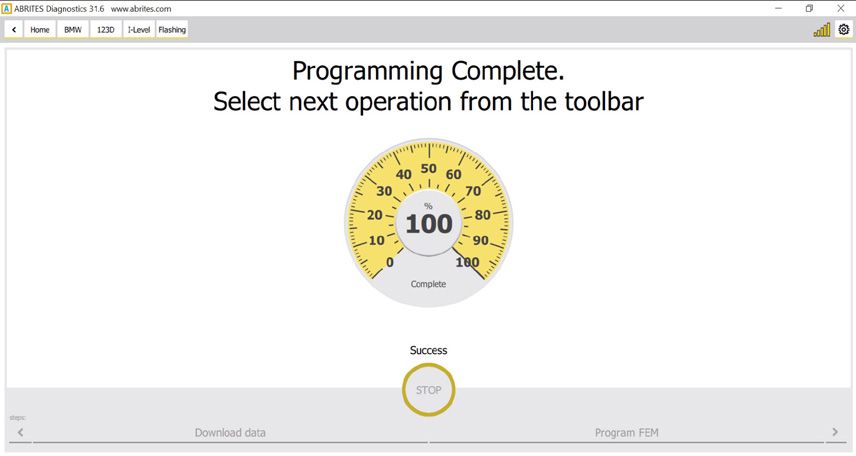
Now the FEM is re-flashed and it will appear in the diagnostic menu.
You could write its original coding from this menu or write a Default coding if you do not have the original one:
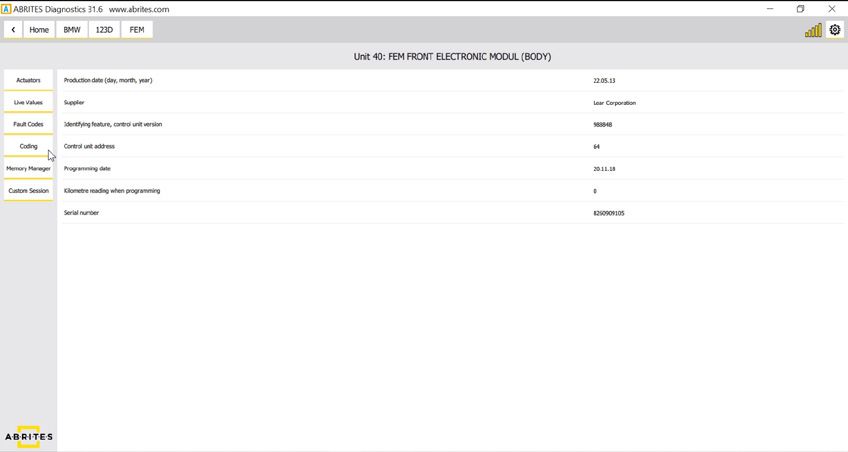
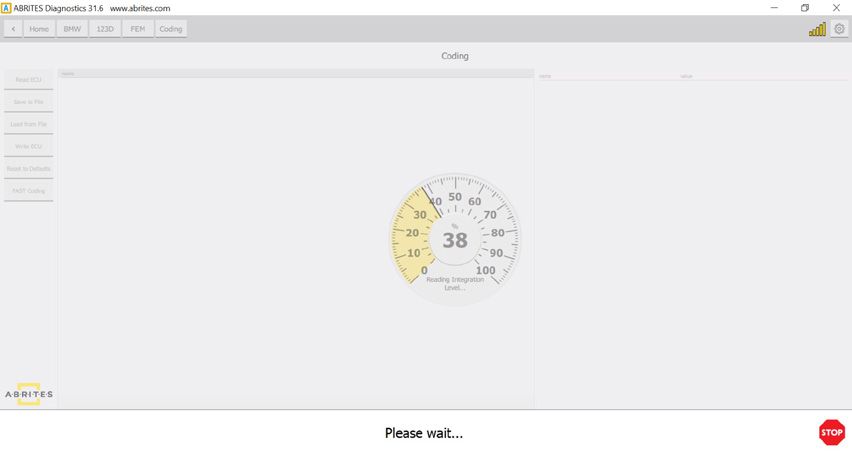
You have the option either to reset it to defaults or load if from a file
- (The original first coding of the unit is saved in
- C:\Users\YOURUSERNAME\Documents\ABRITES software for ID 17XXXX\BMW \VINofYourCar.ncd
Once the coding file is loaded click on “Wrire ECU”
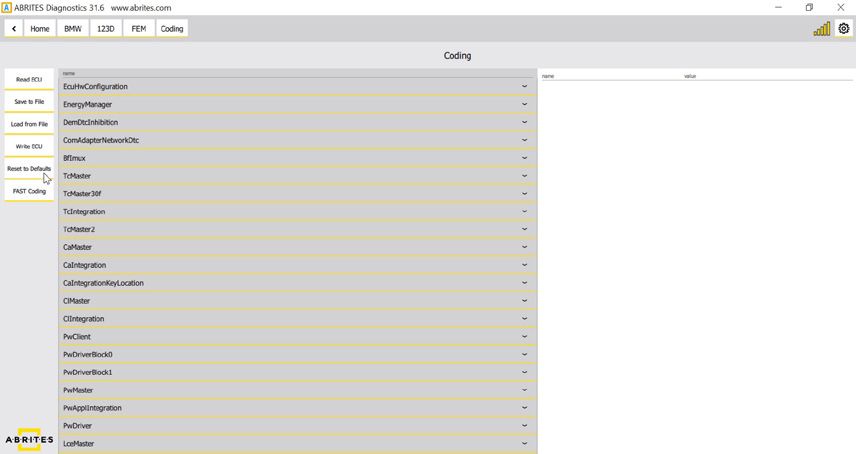
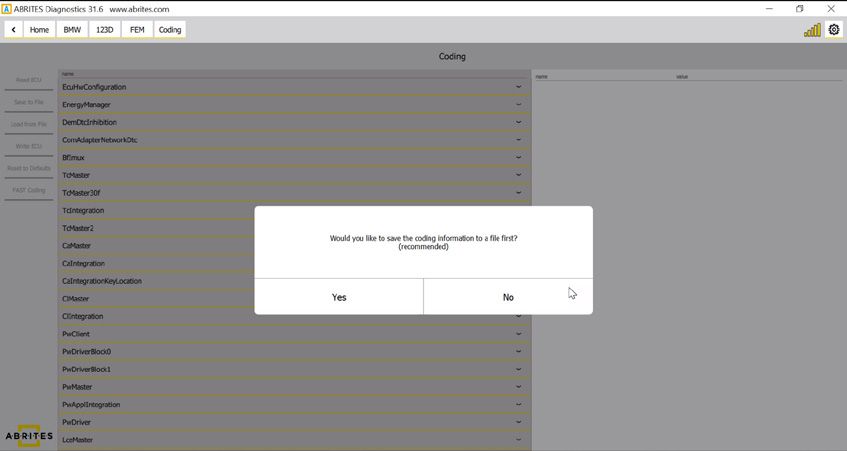
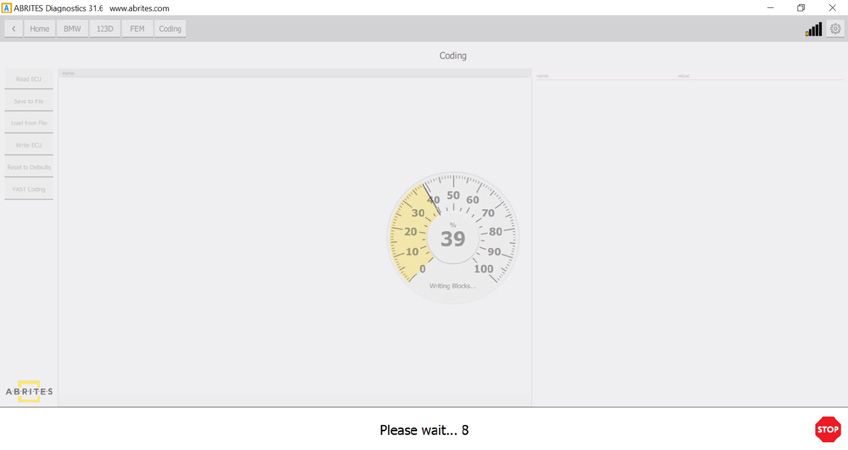
The unit is now coded:
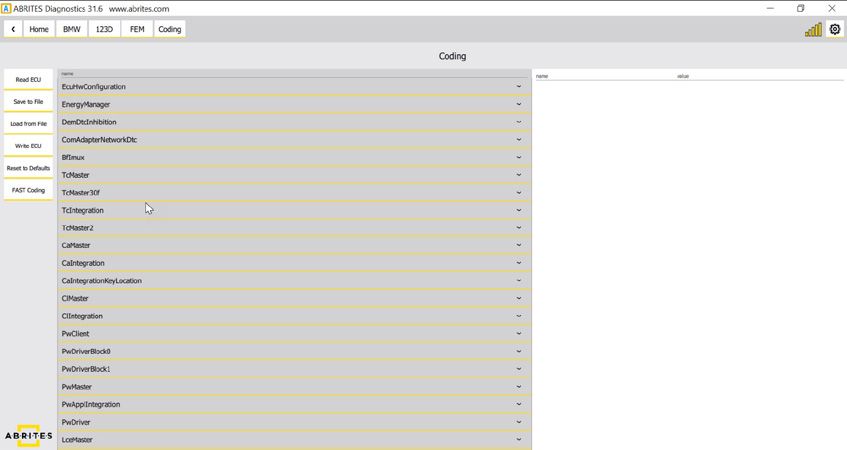
Once the unit is re-flashed and coded you could repeat the FEM/BDC procedure.
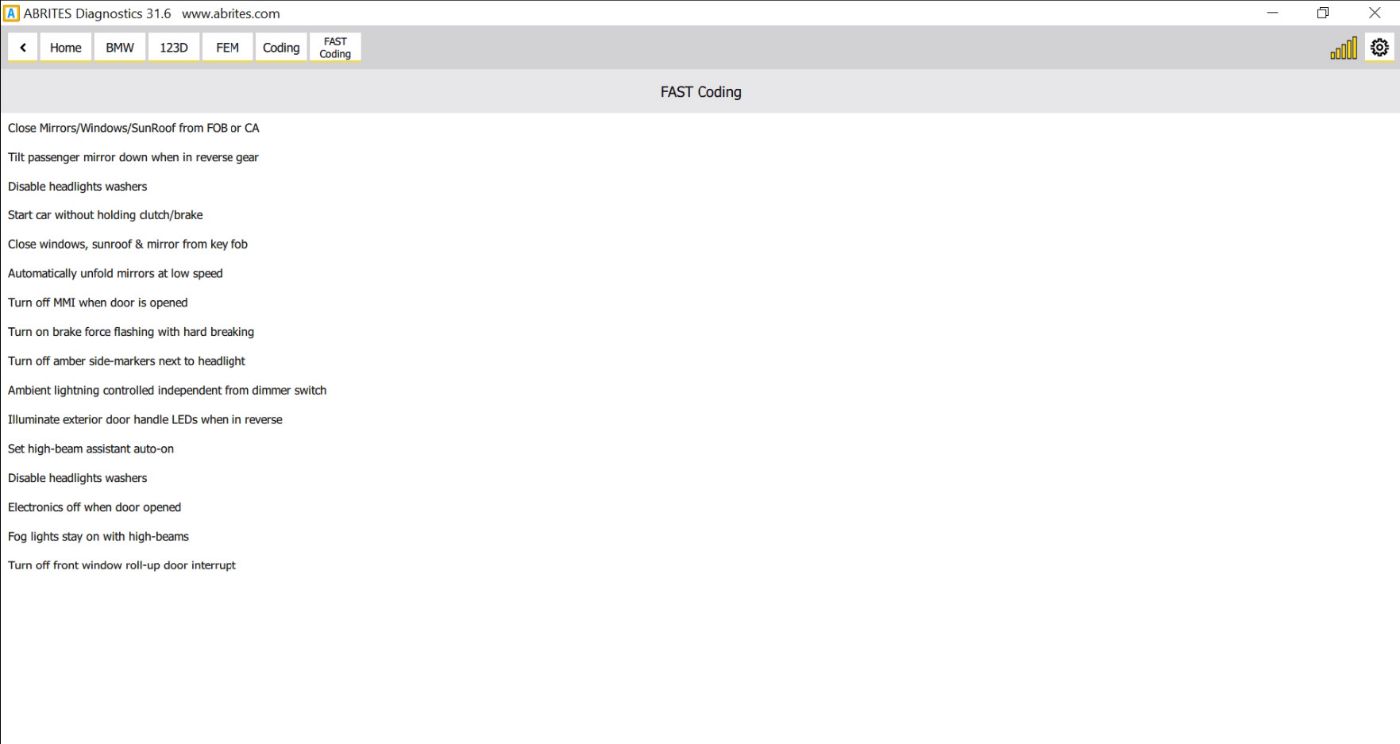
You can find simplified coding procedures in the FAST Coding menu