The Key programming requires you to have active AMS, PROTAG programmer and in most cases it is done via OBDII. In some particular cases described in the sections below you may need an ABPROG or a 3rd party programmer. Once the software is started, please go to the “Keys And Start Synchronization Menu” and open the “EWS Manager”. The EWS Manager is a very user-friendly tool with great functionalities for FEM/BDC/CAS4.
The key learning procedure is done via OBDII for BDC units up to software version 85, for FEM and BDC above software version 85 you would need to first unlock the unit.
The key learning procedure is started by selecting “Program Key“ and requires ISN to be known, and there are 2 ways to obtain it:
-
From the DME/DDE
-
From a working key
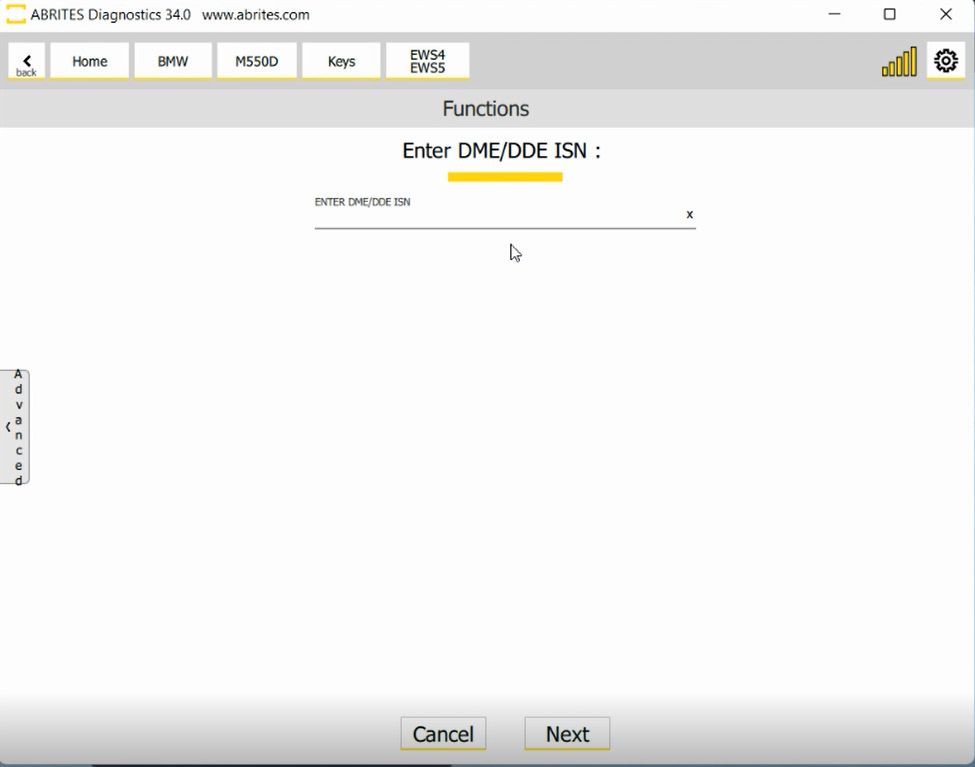
Here is where you start if you have the FEM unit already prepared. The screenshots are from procedure where ISN from DME/DDE is used. The software is guided, so all you need to do is to follow the instructions.
It is highly IMPORTANT to supply 13.6 Volts or more, so that the procedures can run smoothly and finish successfully. An external power supply is a must.
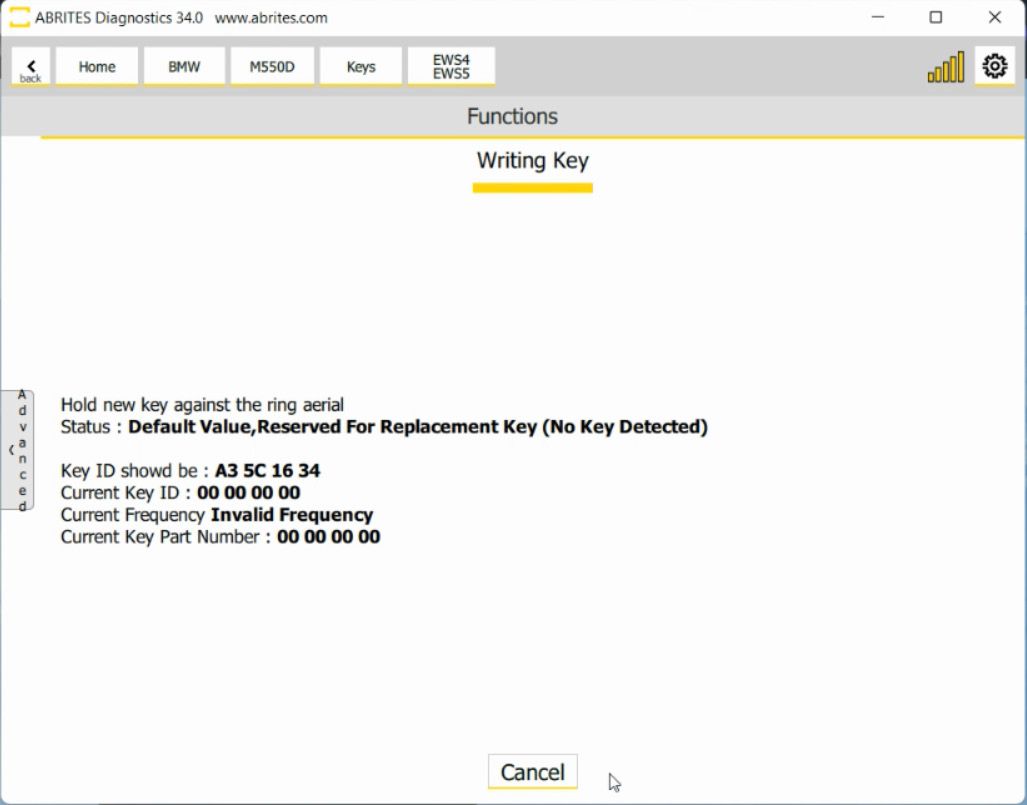
At the last stage you need to hold the key against the ring aerial, located on the steering column and also called emergency slot. With this step completed, the key learning process is finished successfully and the new empty key should now be able to start the car, and also the remote would work.
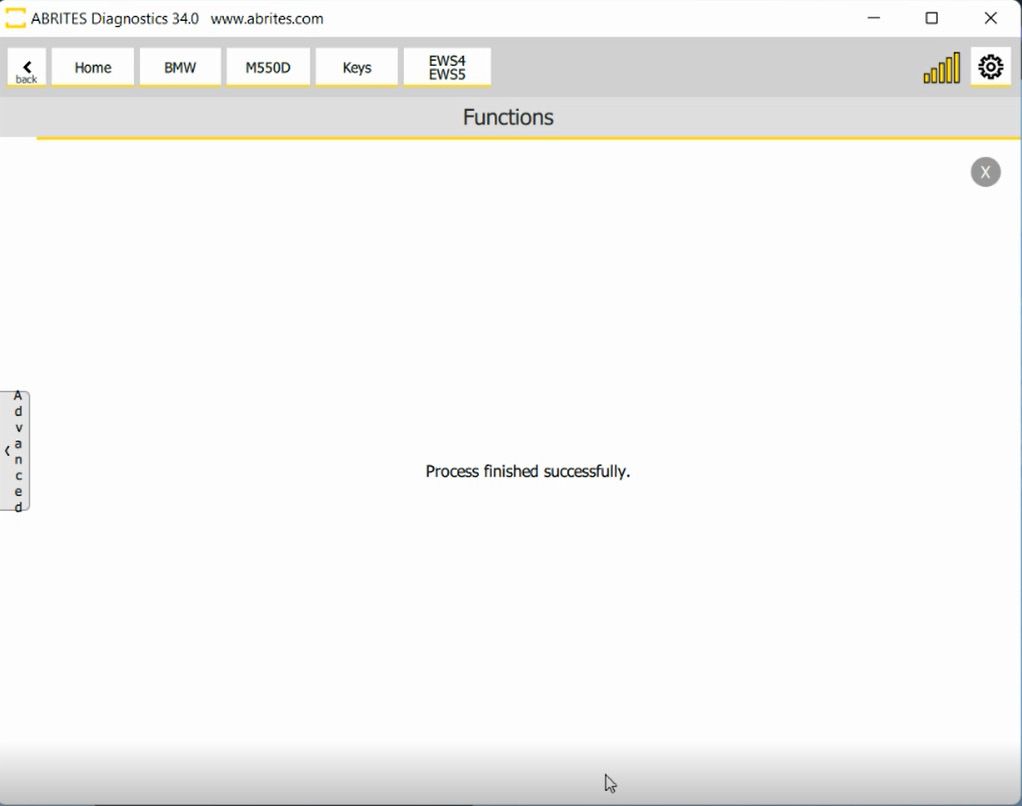
If everything is done correctly as per the on-screen messages, the procedure will end with a message “ Process finished Successfully “
Below you may read fill detail on how to execute the procedure via OBDII for BDC units below version 85 and FEM/BDC (above 85) when unlocked.
There are two possibilities when programming keys to FEM/BDC F- Series vehicles.
1. All keys lost
a). In this procedure you need to connect to the vehicle, the ignition will automatically turn on as this is the way the Abrites Diagnostics for BMW Online operates.
b). Then you need to navigate to “Keys”
c). Choose ISN codes to read the ISN code of the DME/DDE which you will need in order to continue with the All keys lost programming. This will most likely require programming. Make sure your car is connected to an external power supply.
d). Once the ISN is extracted you can copy it to a notepad on your computer and go to EWS manager.
There you will see all the options we provide
- Program keys
- Clear mileage
- Save EWS DATA
- Restore EWS DATA
- Erase Key
- Virginize
NB! We strongly suggest you save the EWS data in order to have a backup!
e). Choose “Program key”
f). Enter the ISN from the DME/DDE and continue.
g). Choose an empty position where you would like the new key to be programmed.
h). Put the new empty key in your PROTAG and wait for it to be written.
i). Once the key has been written place it on the slot marked with a key and two arrows on the steering column of the vehicle. BMW refer to it as a “Ring Aerial”.
j). The key is programmed and can now start the vehicle.
2. Adding keys - spare key programming
The procedure for adding keys is very similar to the “All keys lost” procedure, however it implies that you have a working key for this vehicle where we can get the ISN from much easier.
a). Go to EWS manager
b). Choose Program key
c). Choose working key
d). Place the working key in your Protag programmer to obtain the ISN.
e). Choose a position for your new key
f). Place the new key on the Protag
g). Once the key has been written place it on the slot marked with a key and two arrows on the steering column of the vehicle. BMW refer to it as a “Ring Aerial”.
h). The key is now ready to start the car
BDC Connections
When using the Abrites Diagnostics for BMW online software to program keys to BDC cars of the F Series you can use two different connection options:
1. CB015 ENET (Ethernet to OBD) Cable.
When you use this cable, you can connect the ENET cable directly into your PC using the specific LAN port supplied to it. Please make sure you have your AVDI connected to your PC as well and also make sure that the AVDI is not connected to the vehicle’s OBD because you are going to use the CB015 ENET cable for that purpose.
2. OBDII cable CB100 or CB106.
When you use this connection simply connect your AVDI to your computer and connect the CB106/ 100 to it on one end and to the vehicle on the other.
NB! Please make sure to have a stable power supply going to the vehicle for the duration of this procedure. Protag is also required to be connected to the PC
There is a reason for using two different connection types. This is done for versatility. If you use the ENET CB015 the procedure for BDC key programming will require much less time (around 5-10 minutes). If you do not have an ENET cable you can still use your standard OBDII cable with your AVDI, however the procedure lasts almost 30 minutes.
Prepare FEM units and BDC (avobe software version 85) units
With this updated procedure you only need to read the FEM/BDC (software version above 85) memory once, which saves a lot of time.
The procedure is automatic from beginning to the end, it is created as a guided function, and it gives all required messages on the screen with all necessary steps that need to be executed. There also is a manual (advanced) procedure, which lets you manually choose a part of the procedure you want to execute. It is very helpful when the process is cancelled for any reason, and thus you can continue from where you left.
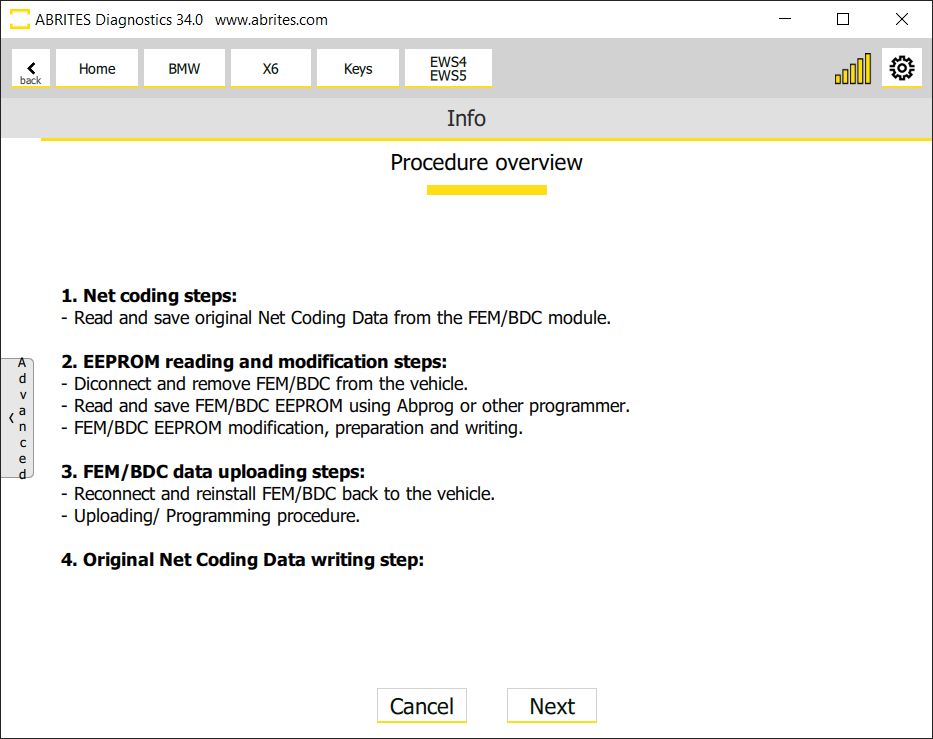
1. Net Coding steps:
- Read and save original Net Coding Data from the FEM/BDC module
2. EEPROM reading and modification steps:
- Disconnect and remove FEM/BDC from the vehicle
- Read and save FEM/BDC EEPROM using Abprog or other programmer
- FEM/BDC EEPROM modification, preparation, and writing
3. FEM/BDC data uploading steps:
- Reconnect and install FEM/BDC back to vehicle
- Uploading/Programming procedure
Please make sure that the supplied voltage does not drop below 13.6V, make sure the external power supply is connected to the car, after that at the next step the control unit data will be uploaded/programmed.
4. Original Net Coding Data writing steps:
- Load previously saved Net Coding data.
Steps 1.1 and 1.2 are dedicated to the reading of the Net Coding Data from the FEM/BDC Module and are done in the vehicle with OBDII connection.
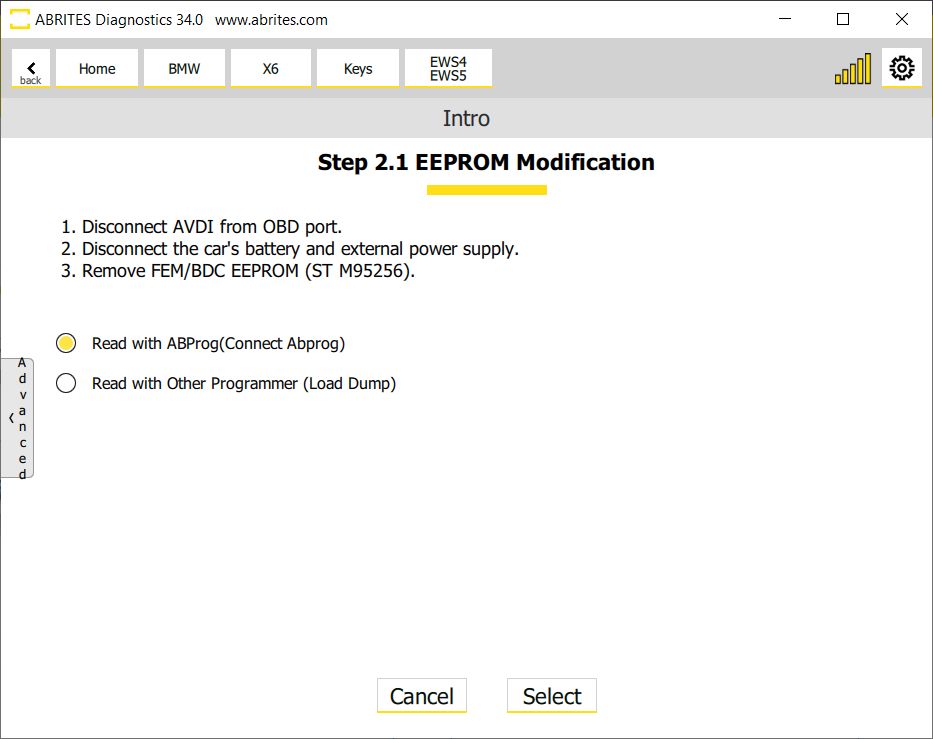
Step 2.1 in the screenshot below is the beginning of the EEPROM reading.
It is very important to stickily follow the steps described in this process
- Disconnect AVDI from OBDII port
- Disconnect the car’s battery and external power supply
- Remove FEM/BDC EEPROM (ST M95256)
You have the option to read the EEPROM with Abprog programmer and the Abprog needs to be connected at this stage. Another option is to upload a dump file previously read with another programmer. *Here is when the “ Advanced functionalities ” come handy - they are described in a separate dedicated section, check for details. If you get to the point where you need to read the EEPROM with another programmer, you would most probably have to cancel the procedure. Later on, you can continue with from where you left.
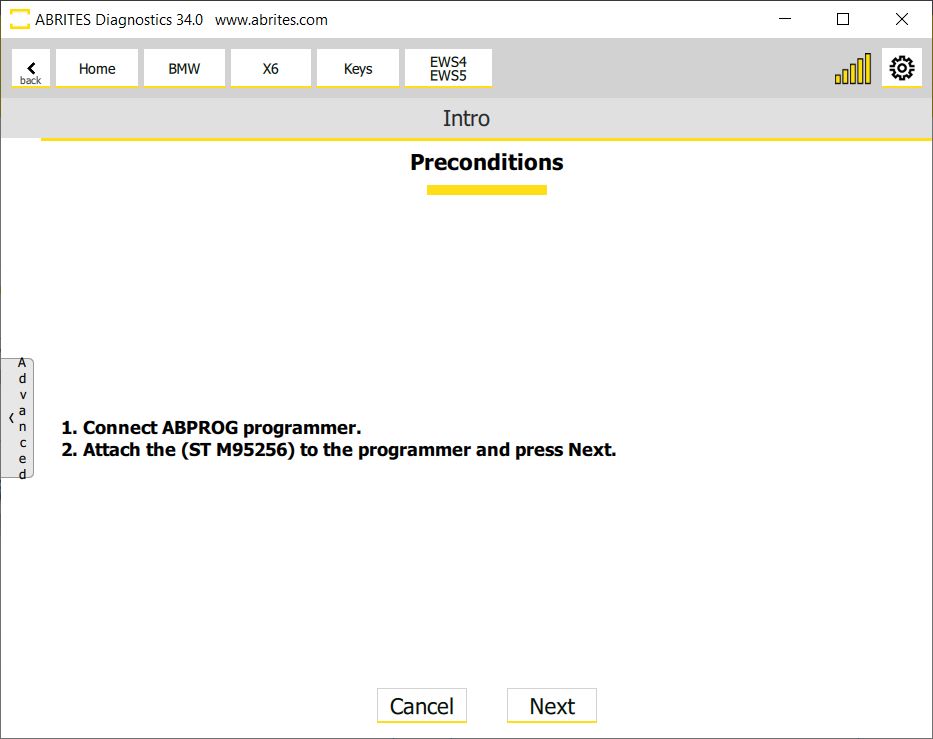
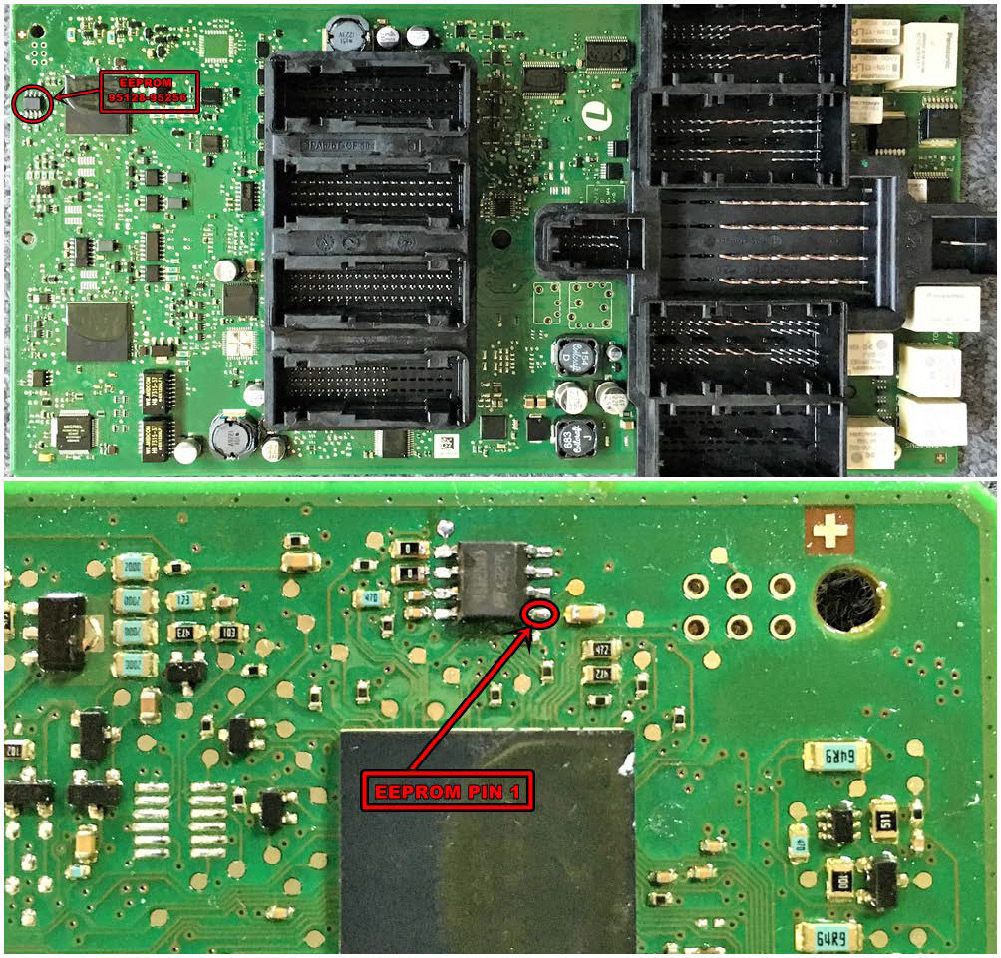
This is what the FEM unit looks like once it is opened. PIN 1 on the EEPROM is marked:
Note: If additional keys need to be added in the future, the software won’t need to reflash the FEM, so the procedure will be a few steps shorter. If you re-flash/update it you will have to repeat the procedure.
Note: Another option when working with FEM or BDC is to use the ZN057 adapter to make reading/writing of information easier with just soldering the adapter cables directly to the PCB and the eeprom chip. The photos below illustrate how this is done:
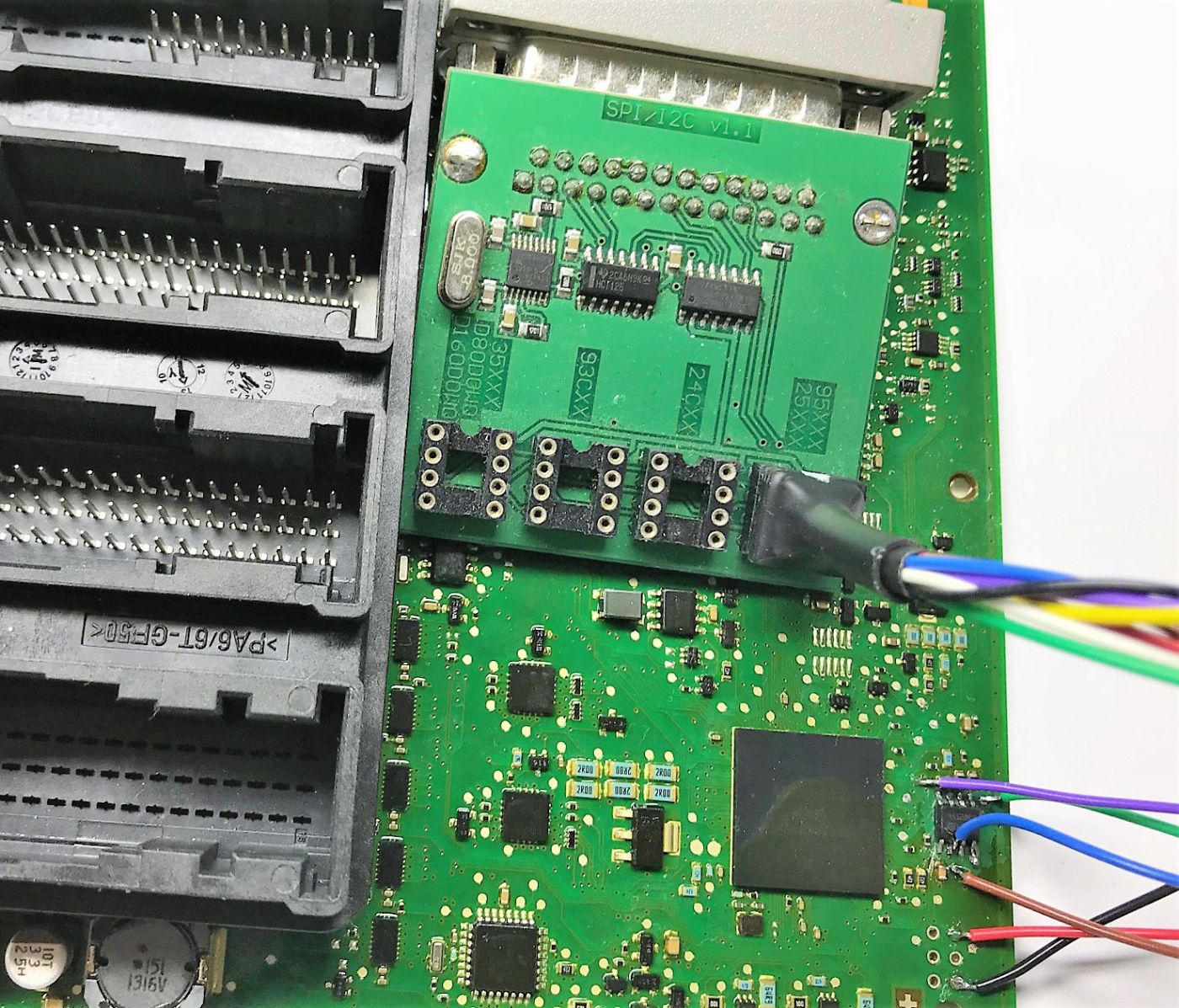
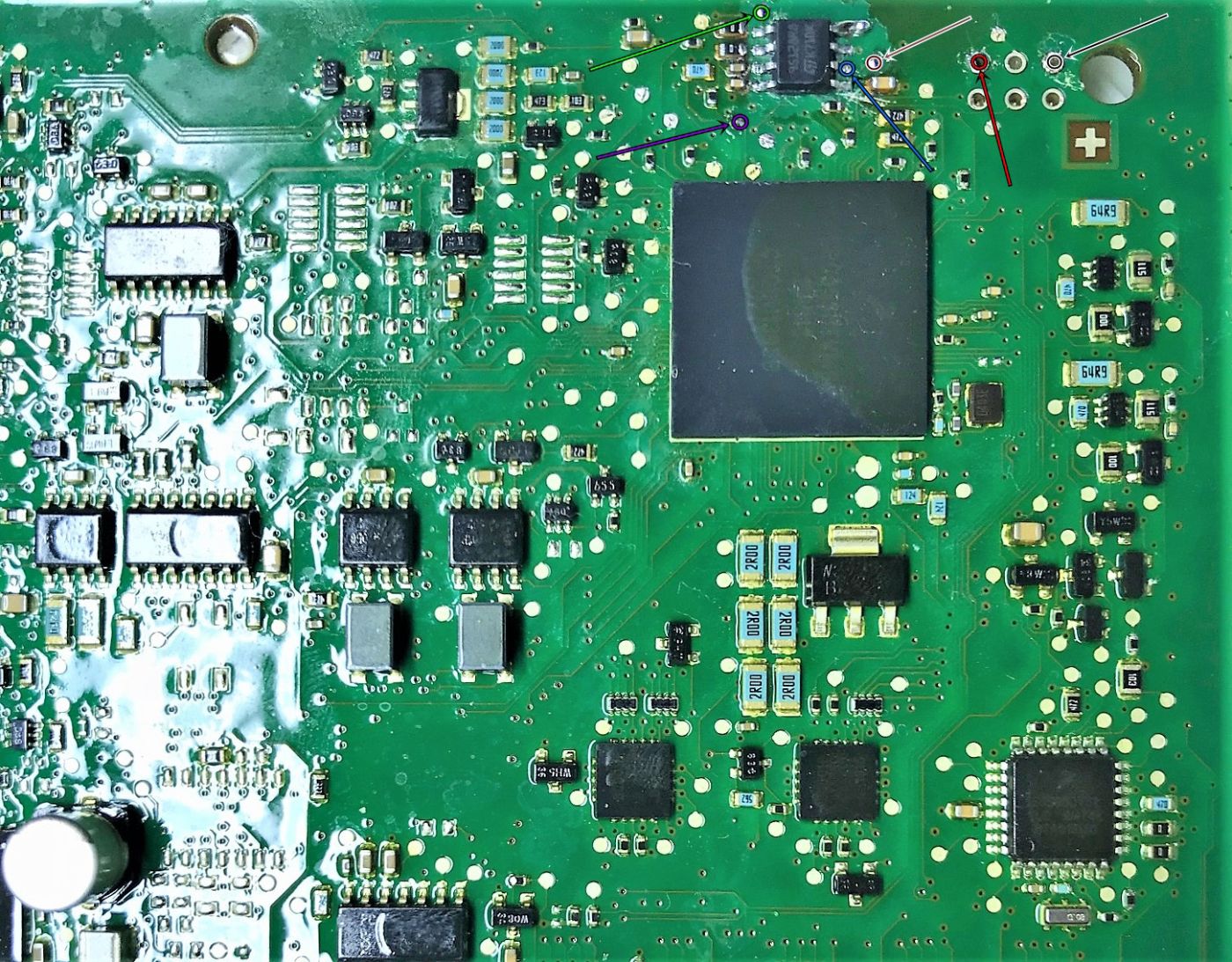
BDC Connections and PCB diagram in case you have your BDC unit with software version higher than 85, and you cannot do the procedure via OBDII and the unit needs to be prepared first.
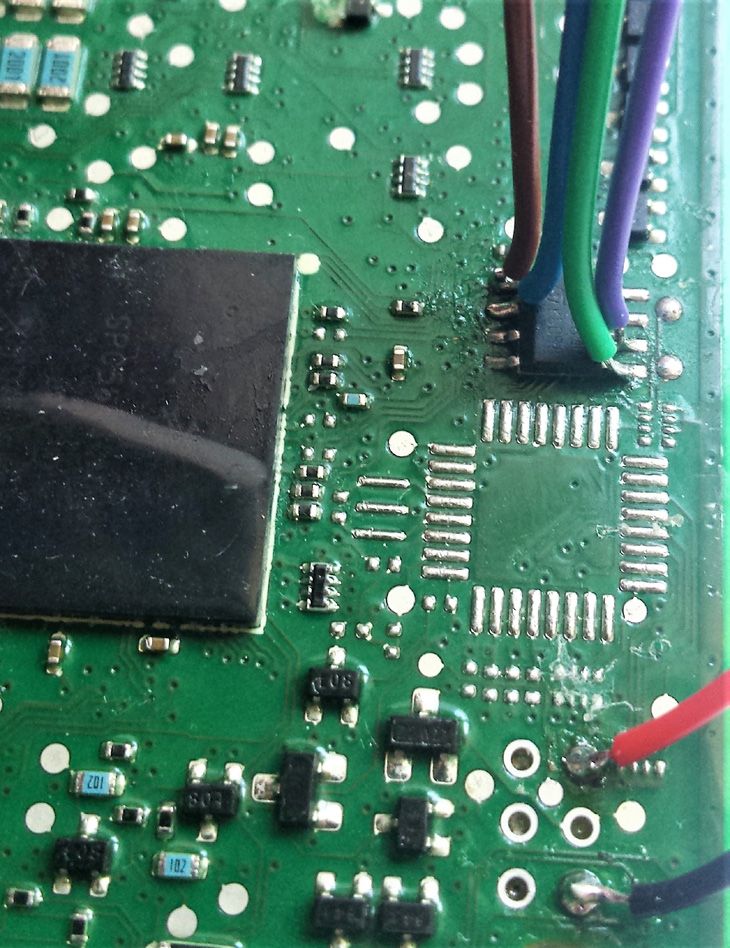
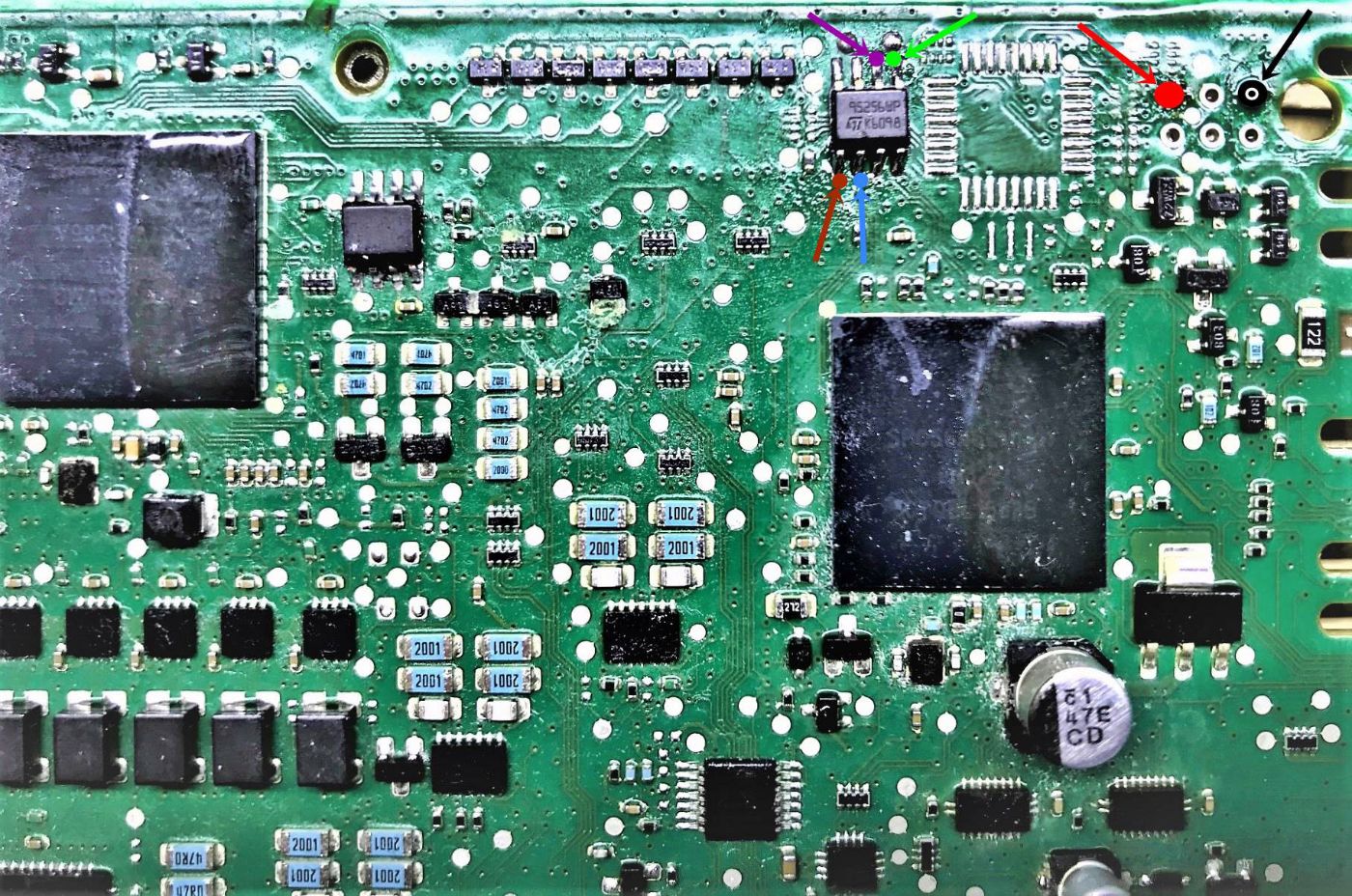
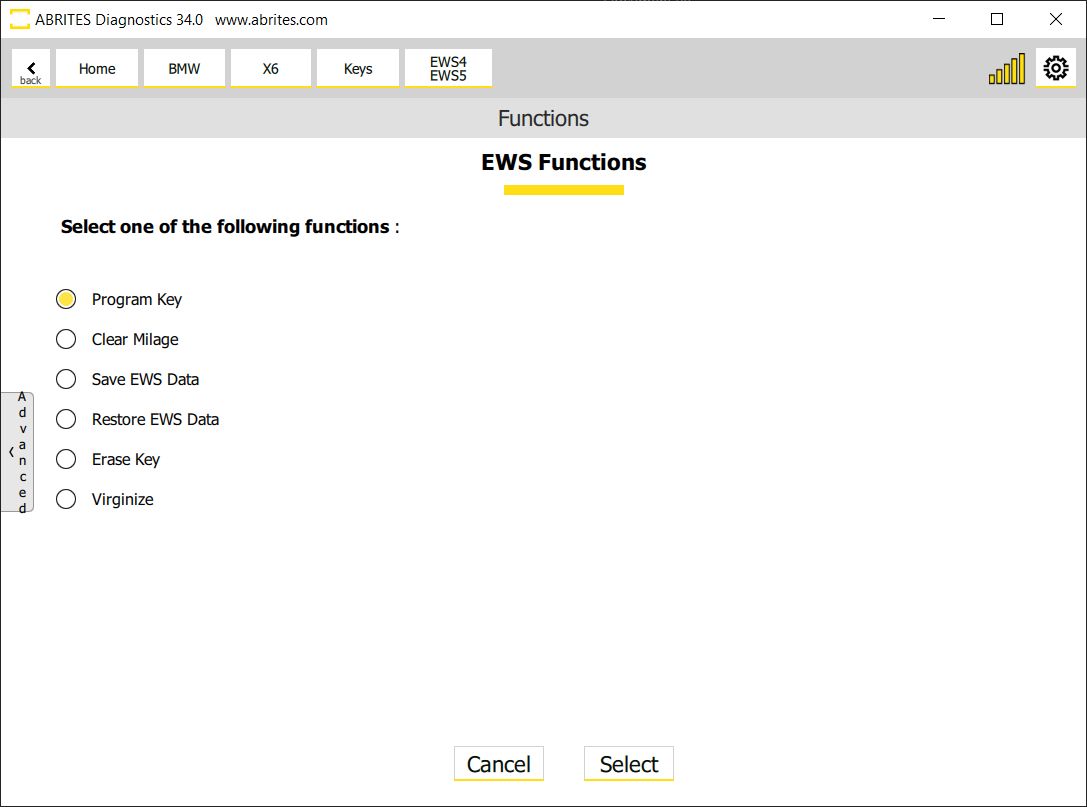
After the procedure with the FEM/BDC unit is done all other functionalities are available in the EWS Functions menu.
-
Program Key
-
Clear Mileage is a one-click solution
-
Save EWS Data is also self-explanatory - it lets you save the data into a file locally on your computer
-
Restore EWS Data does the opposite - it lets you upload a file and write it into the unit
-
Erase Key lets you delete a lost key and free-up the key position, so that the key would no longer be functional for the vehicle.
-
Virginize - prepare the unit into a virgin state, getting rid of immo data and other relevant information, gets it ready for adaptation.
These functionalities would be available for future work on the vehicle, as long as the flash of the FEM/ BDC unit has not been changed or updated. If, for example, you do the whole procedure and program key to a vehicle, and in a few months the same vehicle comes back for another key, or for clear mileage, the EWS Functions Menu would be available without the long procedure, as the unit has already been prepared.
Important notes
- Re-flashing or updating the unit undoes that. After a flash change the whole preparation has to be done again.