The BMW DIS system can be used on both a virtual machine and a regular computer.
To use DIS with AVDI interface you should perform the following steps:
- Change the IP address of the first VMWare adapter to 192.168.68.1:
Open windows explorer.
Type in the address bar the following “C:\Windows\System32\ncpa.cpl” and press Enter.
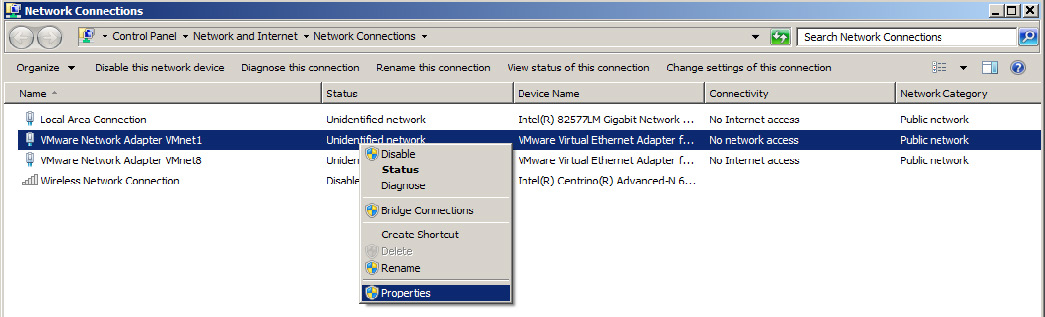
In the opened window right click with the mouse over “VMware Network Adapter VMnet1”and choose properties.
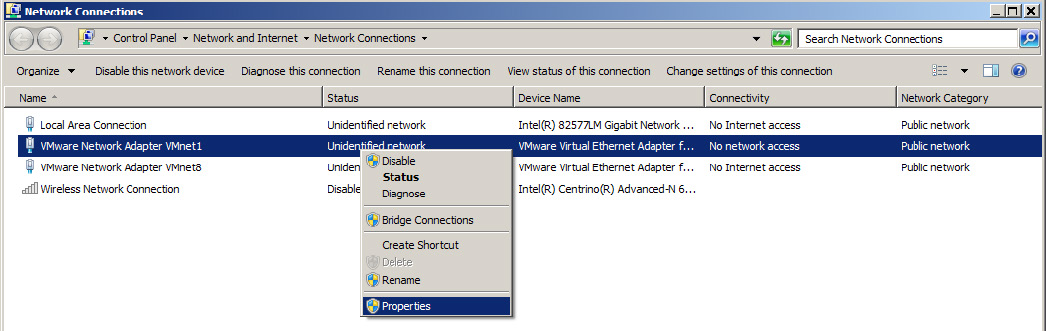
Select “Internet Protocol (TCP/IP)” (or it might be “Internet Protocol Version 4 (TCP/IPv4)” depending from windows version) and click Properties.
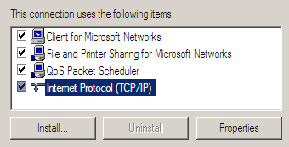
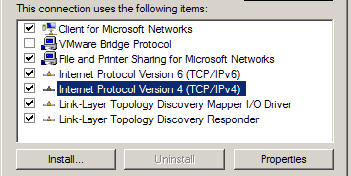
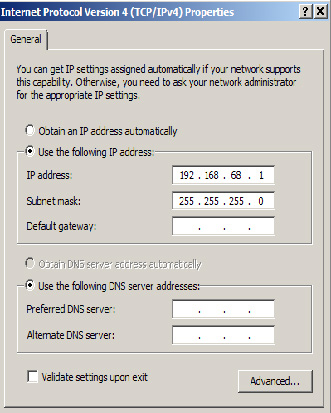
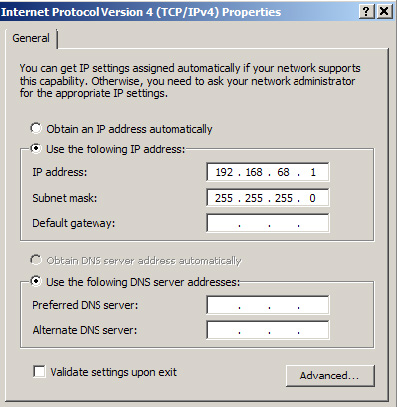
Select “Use the following IP address”.
Enter IP address 192.168.68.1, Subnet mask 255.255.255.0
From start menu “Start -> All Programs -> ABRITES Software for ID XXXXXX” select “ebridge” (XXXXXX is the number of your AVDI interface).
Make sure the interface is recognized. If it is not recognized you will be informed with the following message:
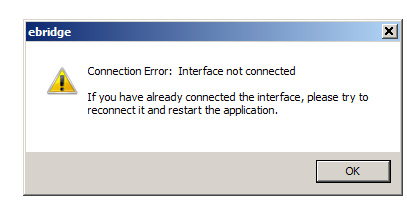
If the interface is recognized the following window will appear:
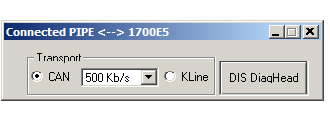
Choose CAN or Kline. Click on “DIS DiagHead”. Choose “Run” in the menu of the newly opened dialog.
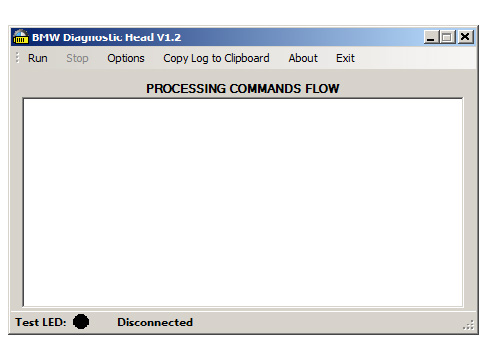
Start VMWare and play VM with DIS.
From the VMWare menu select “Virtual Machine” -> “Removable devices” -> Network adapter -> Connect. Do this for all Network adapters (1,2,3, etc.).

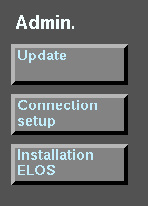
Go to VM with DIS and press button “Administration” at the bottom right corner.
In the new window press “Connection setup” button.
In the new window below “Free diagnostic heads” you should see the name of your host PC followed by the IP address 192.168.68.1.
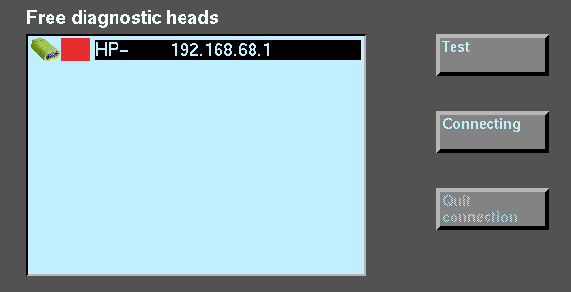
Click over it and press “Test”. Press “Connecting”. After a connection is established press the arrow button in the bottom left corner.

You should see that on the bottom of the “BMW Diagnostic Hed V1.2” the status is “Connected”
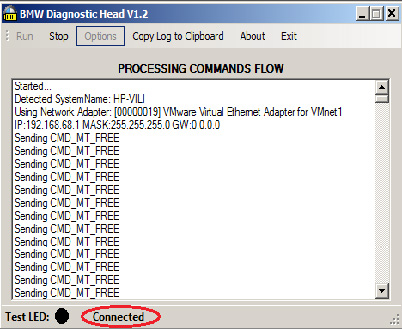
You can start your work with DIS diagnostic system through your AVDI interface.
In the cases where you would like to use the DIS via passthru you need to do the following:
- The initial configuration is done only once.
After it is performed only steps from “5.3.2. Usage” should be performed.
Download and install latest passthru drivers for BMW-EDIABAS (for example pttbmw_2.1.0.0.exe – drivers are also available for download from Open with “NOTEPAD” your “\Program Files\BMW AG\PassThruD\ EDIABAS.INI” and replace the string “Port= “ with the string “Port=6801”.
From start menu run the program “START -> All programs -> BMW PassthruD x.x.x.x -> PassthruD Configuration”.
Select your AVDI interface and set the checkbox about baud 115200.
- Open windows explorer.
Type in the address bar the following “C:\Windows\System32\ncpa.cpl” and press Enter.
In the opened window right click with the mouse over “VMware Network Adapter VMnet1” and choose properties.
Select “Internet Protocol (TCP/IP)” (or it might be “Internet Protocol Version 4 (TCP/IPv4)” depending from windows version) and click Properties.
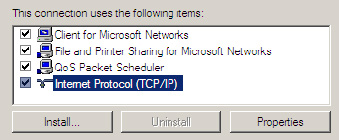
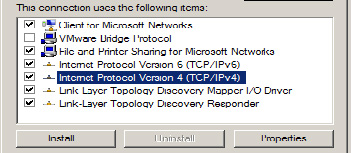
Select “Use the following IP address”.
Enter IP address 192.168.68.1, Subnet mask 255.255.255.0.
From start menu go to “Start -> All Programs -> ABRITES Software for ID XXXXXX” select “DiagHead” (XXXXXX is the number of your AVDI interface).
Press “Run”.
From start menu run the program “START -> All programs -> BMW PassthruD x.x.x.x -> IFH Server”.
Start VMWare and play VM with DIS.
If you see in the following picture in upper right
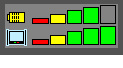
corner
i.e. both rows lighted then DIS system is connected to the host machine.
You can start your work with DIS diagnostic system.