In case you decide to use the AVDI and any OEM software on a virtual machine you will need to take into consideration the following:
- Always make sure that your AVDI is connected to the virtual machine and not the host computer. Many VM products will indicate that. In the example below you can see that the AVDI is shown as a USB device.
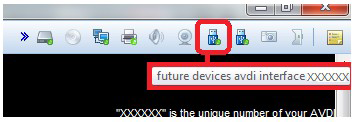
Once your AVDI is recognized by the virtual machine you can transfer your passthru drivers onto the VM. After that you need to follow the instructions for installation depending on which software you would like to use in the virtual machine.
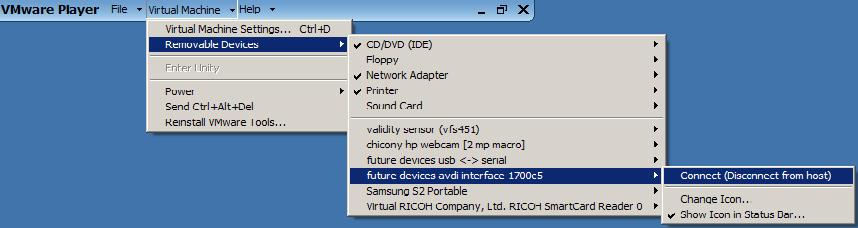
From the main menu of the VMware player, select “Virtual Machine” → “Removable devices” → “future devices avdi interface Vvxxx” → “Connect (Disconnect from host)”.
In some cases you will be shown a message informing you that the USB device will be unplugged from the host machine and connected to the virtual machine.
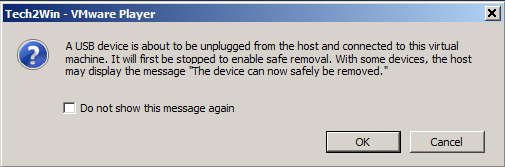
Press “OK”.
Your AVDI interface is now connected to the virtual machine and can be used with software installed on this machine.
If you like to disconnect the AVDI interface from the VM (so you can use it on the host PC) you can either close the VM Player or do it through the VMWare menu “Virtual Machine” → “Removable devices” → “future devices avdi interface Vvxxx” → “Disconnect (Connect to host)”.
NOTE: Make sure that the latency timer is set to “1 ms” according to the AVDI Common User Manual.