- EM004 emulator – Video in Motion CAN Filter 125k (W167 W292)
With the help of the Abrites EM004 you will be able to allow the video in motion to operate even when the vehicle’s coding does not allow this to happen.
If the video in motion cannot be performed via coding you will need to install this emulator in order to allow the VIM to function.
This Emulator can be used for the cars where the video in motion CAN is at 125k speed.
- EM005 emulator – Video in Motion CAN Filter 500k (W216 W221)
With the help of the Abrites EM004 you will be able to allow the video in motion to operate even when the vehicle’s coding does not allow this to happen.
If the video in motion cannot be performed via coding you will need to install this emulator in order to allow the VIM to function.
This Emulator can be used for the cars where the video in motion CAN is at 500k speed.
- EM008 emulator – Mercedes Odometer calibration emulator for W204,W205,W212 (FBS3/FBS4)
The Abrites EM008 Emulator is designed to assist the calibration of vehicles when this cannot be achieved diagnostically.
- EM018 (old EM009) emulator – Mercedes Odometer correction emulator with jumper cable for dash for W204/W212 (FBS3/FBS4)
The Abrites EM018 (old EM009) Emulator is designed to assist the calibration of vehicles when this cannot be achieved diagnostically.
It comes equipped with a cable set which is used to connect to the cluster.
Note - All of the emulators use the connection diagram for EM004 except for EM018 (old EM009) (it is equipped with a connector cable set)
*EM009 is now outdated and not for sale anymore - it is replaced by EM018
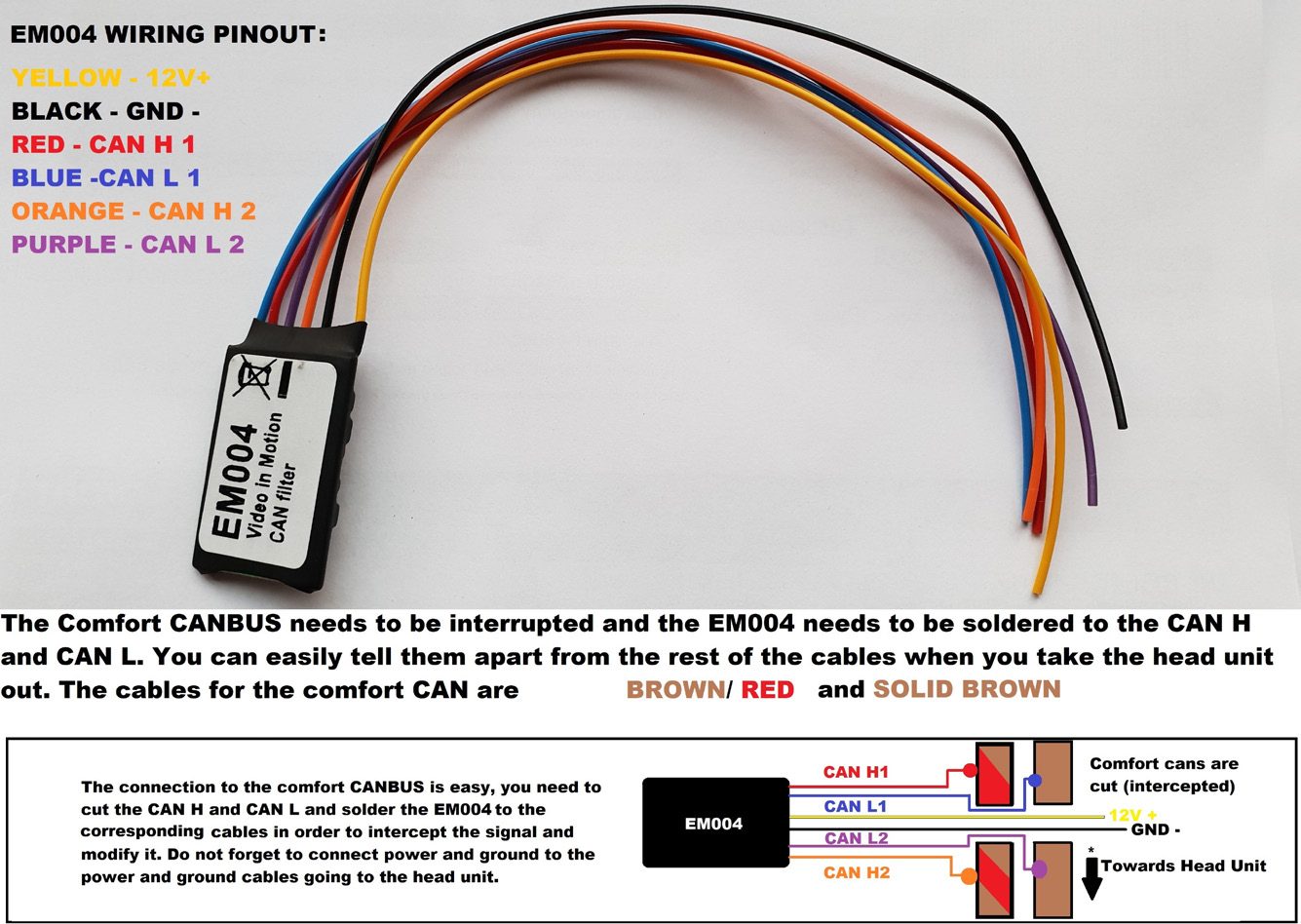
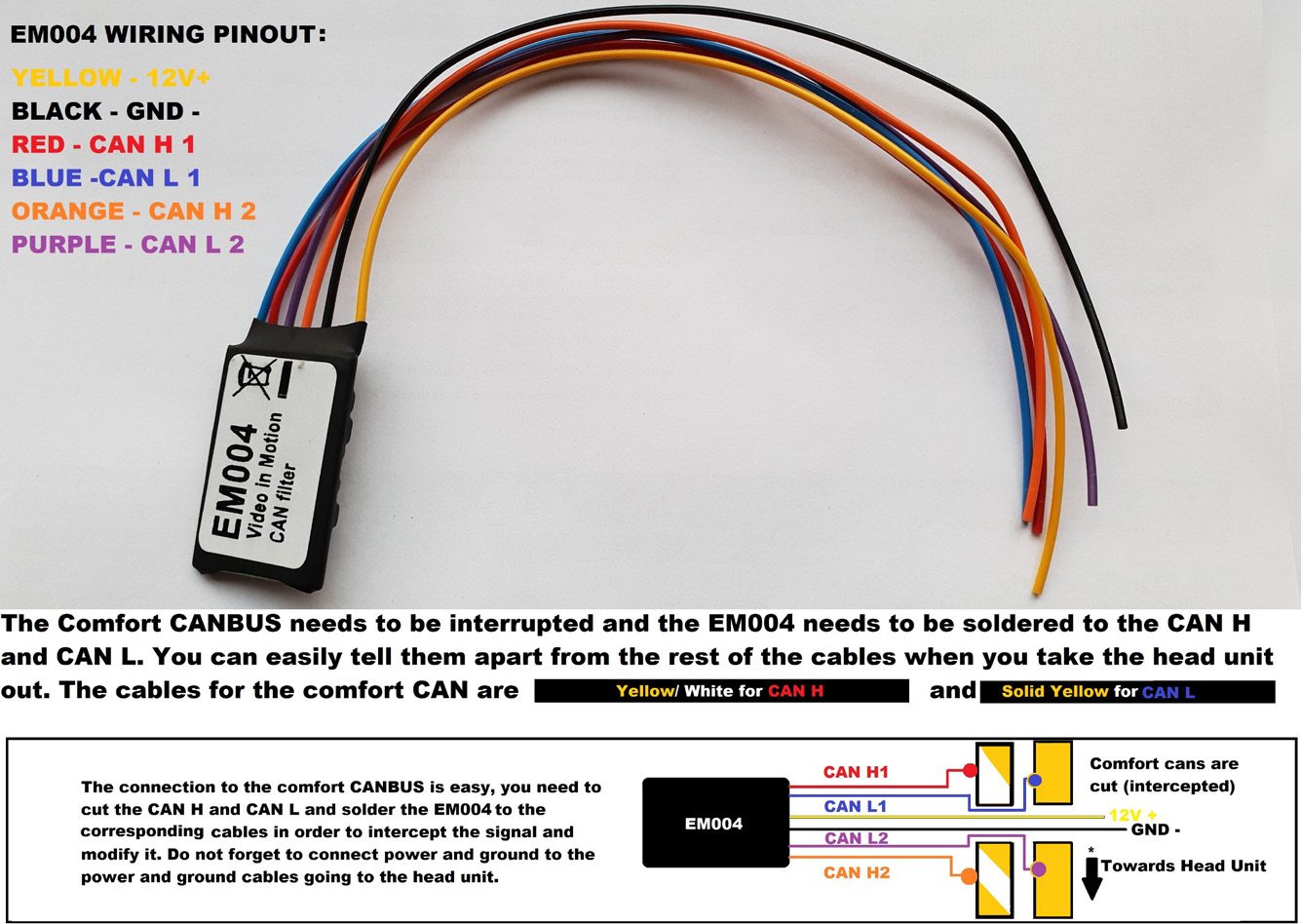
For most models it will be a direct plug in, but in the case of the W204, W207 and W212 for example you need to follow a procedure to perform the ESL emulator adaptation once you have the Key password. The EZS needs to be read, then press SAVE DATA (this is the FBS/DAS data), save the data, then make sure to save the coding and know where they are on your computer
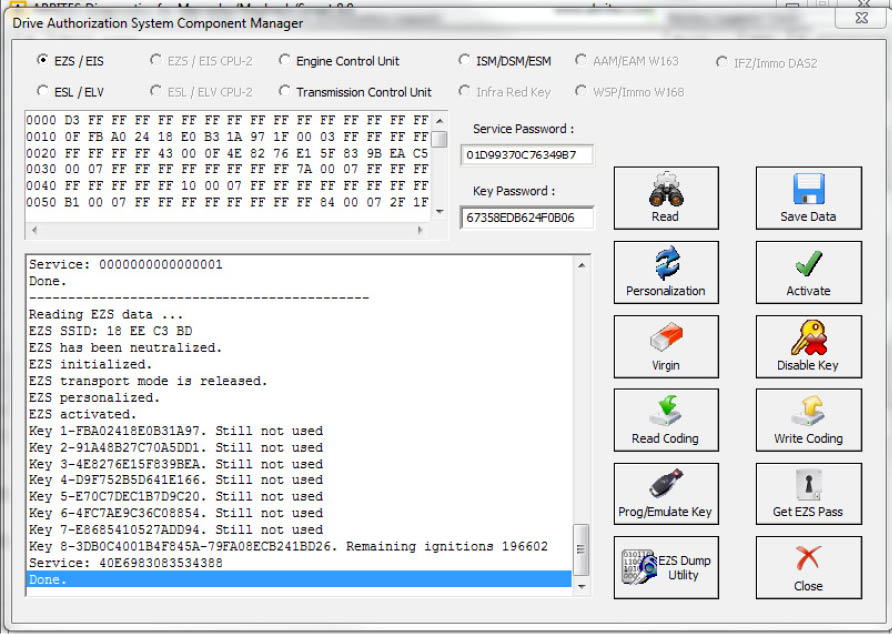
*It is only after you have done this that you can move on to the ESL
- The ESL (EMULATOR) needs to be read
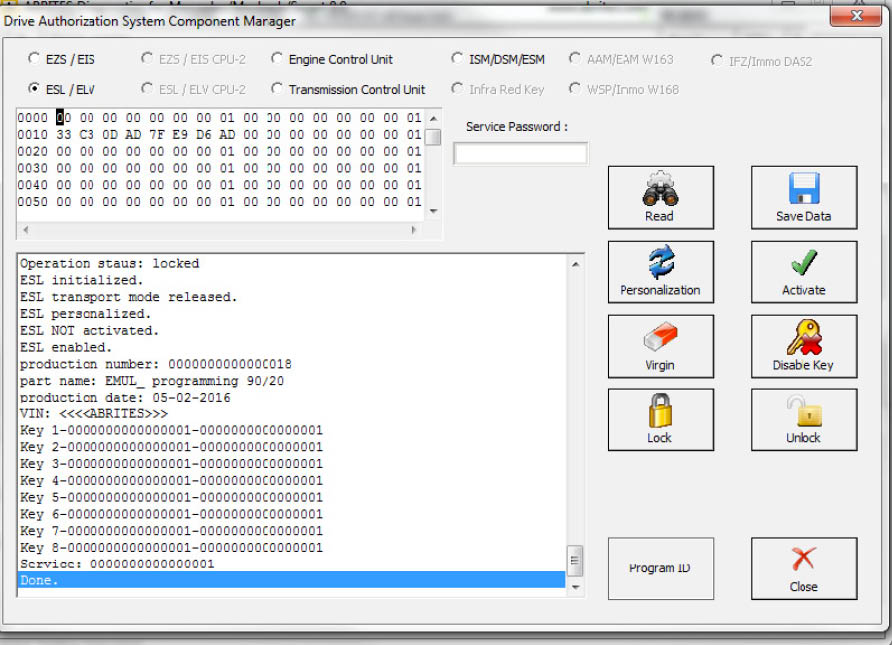
After that the software will ask you to connect the LIN to the ESL and you will have the option to personalize the ESL with the FBS/ DAS data that you saved from the EZS.
Note that the ESL of the car MUST be disconnected when adapting an Abrites emulator!
- Then the ESL emulator needs to be personalized to the EZS using its data. Please make sure that there is no key in the EZS and that the EZS does not fall asleep during this. A good way to ensure that is to turn the key in the EZS before starting the procedure and then take it out. In almost all cases turning the lights on the car to the “ON” position will allow you to work with the car without the EZS falling asleep.
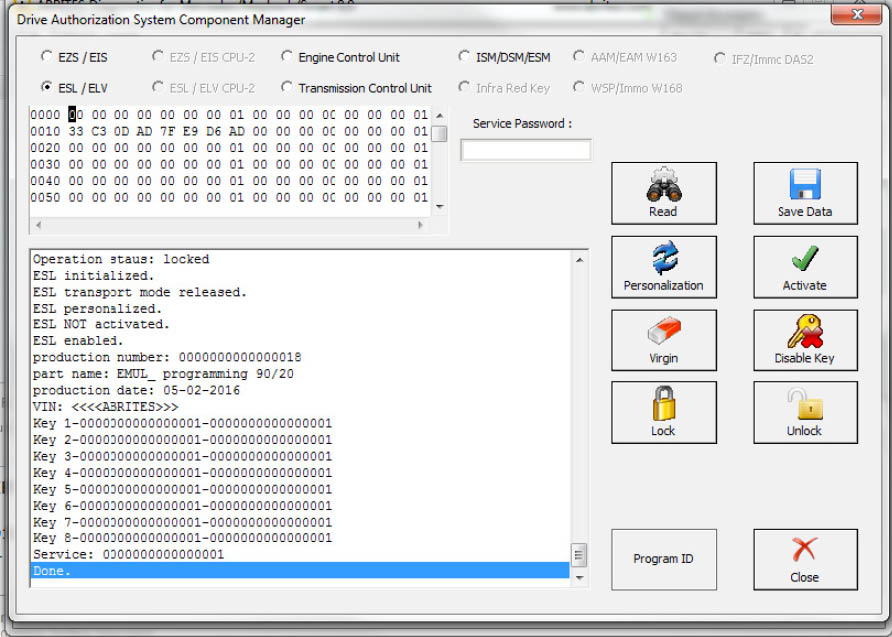
When you are done and the procedure for adaptation is completed the ESL emulator will beep longer when the ignition is being turned on and shorter when it is being turned off.
If it is needed the Emulator can be updated. This is done by connecting the positive, negative and K-line of the emulator is connected to the AVDI and selecting the EMULATOR update function from the special function in the Abrites diagnostic software. Connect, select the function and wait for the EMULA - TOR to be updated. The update file can be requested using support@abrites.com .