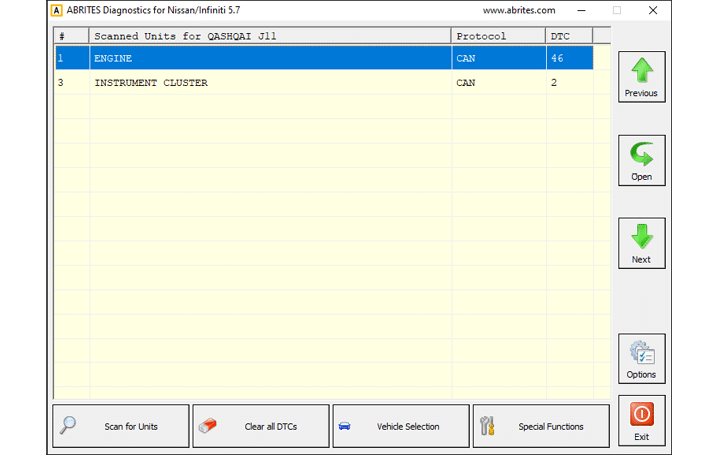
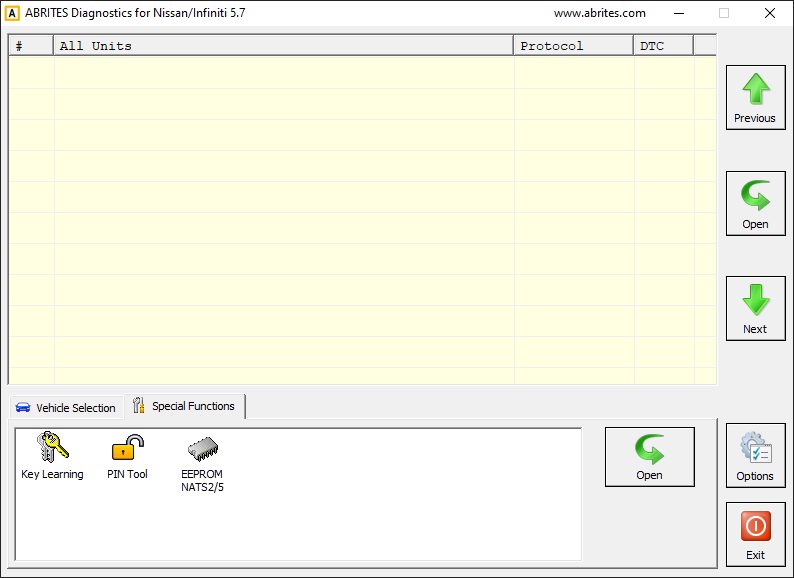
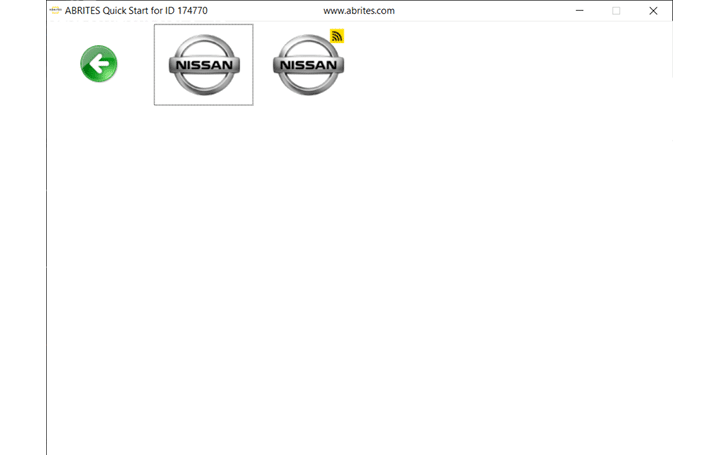
When you open the Abrites Quick Start menu, you need to fined Nissan logo and click it, and it will open the page that you see on the first sceenshot below. Once the first Nissan/Infinity icon is selected from the Abrites Quick start menu the software will start and you will see the screen from the second screensot below:
The ABRITES Diagnostics for Nissan/Infinity consists of two parts:
-
Standard diagnostic functions like reading/clearing diagnostic trouble codes (DTC), scanning available devices in the vehicle, displaying actual values (measured parameters), performing actuator tests etc.
-
Special functions like Key Learning, Memory Manager, and PIN calculator
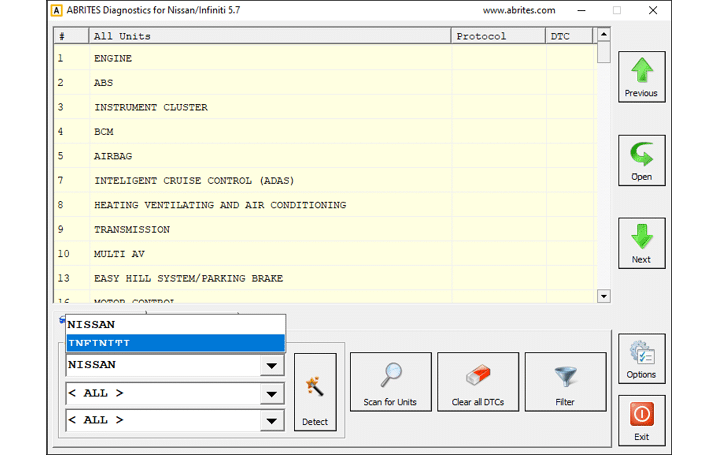
All devices, which are present in the car are listed in the main screen of the ABRITES Diagnostics for Nissan/ Infinity. If you want to connect to a specific device, please double click on it or select it ant press the “Open” button. The “ABRITES Diagnostics for Nissan/Infinity will try to connect to the device. From this screen you have the option to selec the vehicle in order to complete full vehicle scan, select the special function menu, or set some options and language.
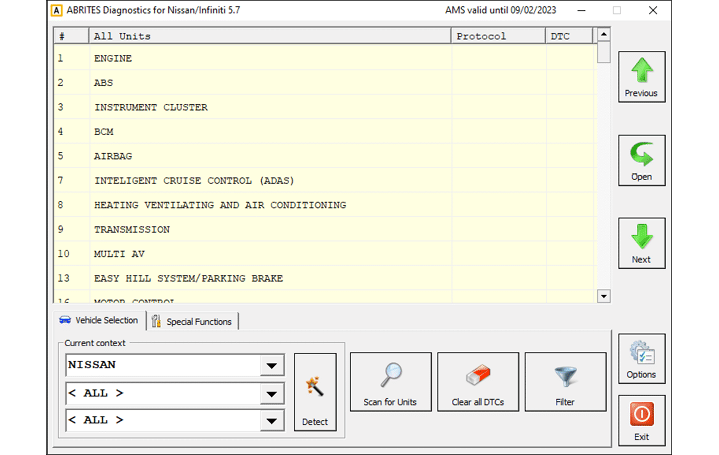
From the first screen you can select the vehicle you are working with, do a Scan for Units (and DTCs) and Clear DTCs. Also, a sub-menu with options is available from this screen.
(The modules may vary according to the vehicle specifications.)
The second screen shows the available Special Functions in the Abrites Nissan/Infinity software.