Step-by-step procedure
1. Connect and launch
After connecting both the Abrites programmer for RH850/V850 and AVDI to the PC via USB ports, launch the Abrites Quick Start Menu, scroll down until you find the "RH850/V850 programmer" and click on it.
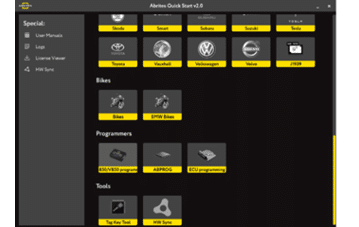
2. Choose the MCU type
Once you open the software you will have the option to choose the MCU type you are working with - RH850 or V850. Please select the icon of your choice.
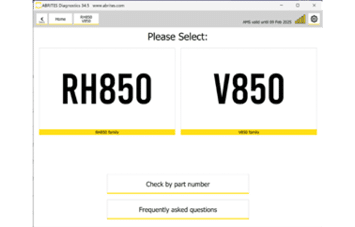
3. Select the unit
Once you have selected the RH850 or the V850 MCU type, you will see the available units - make your selection to continue.
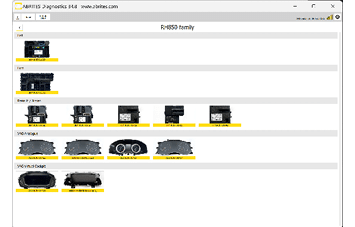
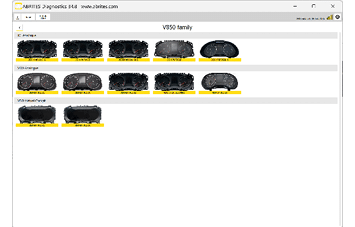
4. Check the wiring
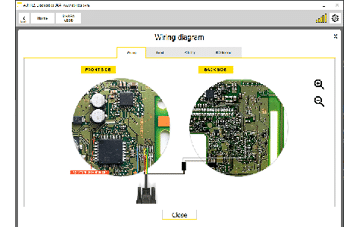
Once the unit is selected, the main screen gives you the option to see the connection diagram, read the MCU, or load a file. The "Wiring" button will give you everything that is needed for connection to the selected unit.
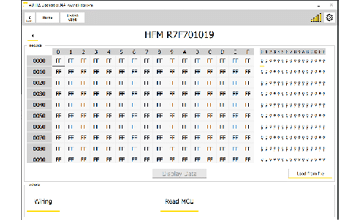
5. Read the MCU
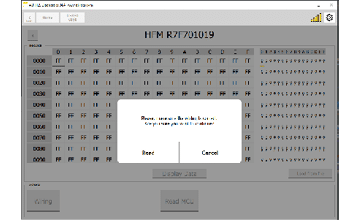
Once ready with the connections you can proceed to reading the unit by pressing the "Read MCU" button. Once the unit is read, the software will display the available information.
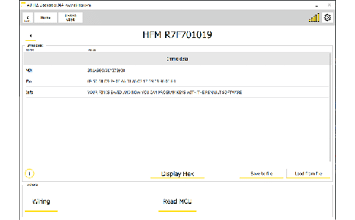
It is recommended to always save a backup before doing any modifications to the data!
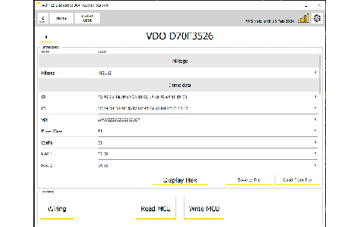
Below you may see example of a VAG dashboard read with the programmer.
Important notes
- What is displayed differs by unit. The screenshots here use a Renault HFM; other units show different information.
- The "Wiring" button is the authority on how to connect - it carries the diagram, both sides of the unit and both sides of the PCB. See Connection diagrams.